
Content
Overview
Click a table in the object tree and the content area opens Content, the results grid. The same table also has two other views, switched with Content | Structure | Info at the right of the tab bar:
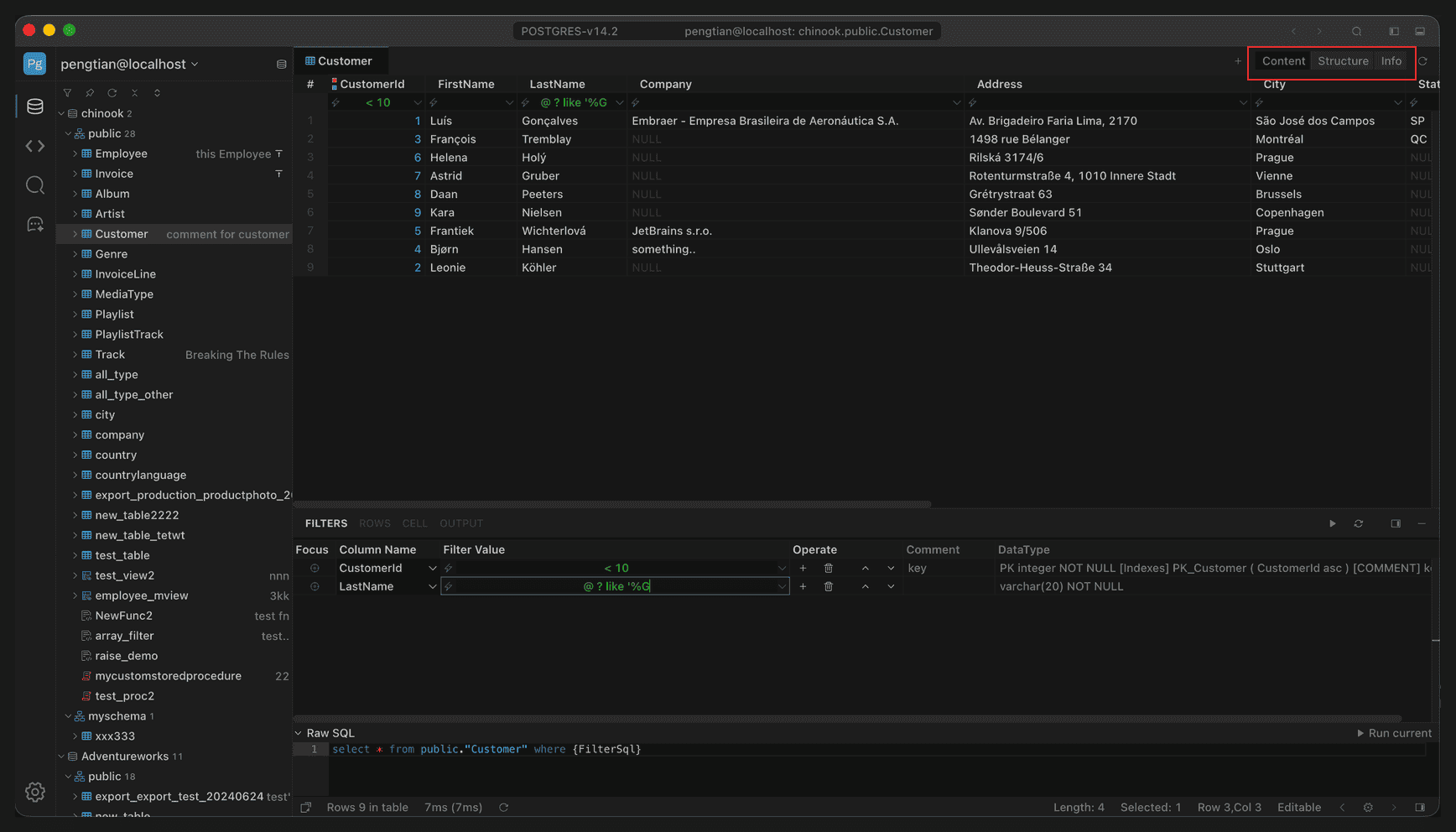
Full-window view; the red box marks the view switcher (top right of the table)
| View | Contents |
|---|---|
| Content | Table data, filterable, sortable, and editable |
| Structure | Table structure: columns, indexes, foreign keys, constraints, table options |
| Info | Basic table information and the CREATE statement |
All three views belong to the same tab; switching does not open a new page.
Toolbar
The toolbar at the right of the tab bar provides:
- +: create a new tab for the current connection.
- Refresh icon: reload the data of the current view (
Cmd+R, win:Ctrl+R). - Close button: close the current tab.
Refresh data
If someone else changes the data, refresh to get the latest results. Refresh only reloads the current view and does not affect filters you have set.
DataGrid
The DataGrid is the grid shared by table data and query results: column headers and the filter row at the top, the data area in the middle, and the FILTERS / ROWS / CELL / OUTPUT panels and the Page bar at the bottom.
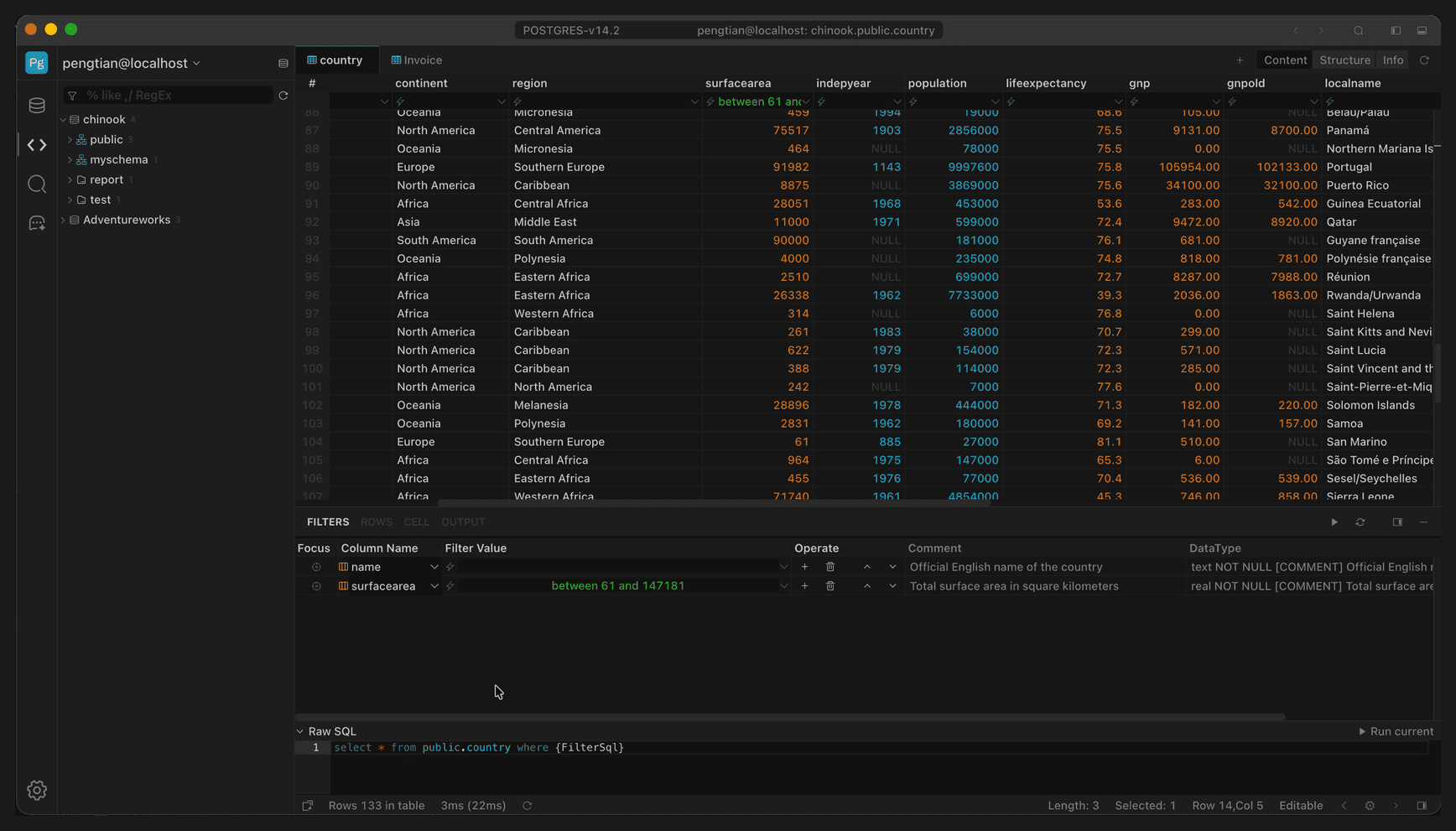
The DataGrid in full: column headers, filter row, data area, bottom panels, and Page bar
▶ Tutorial: DataGrid
Column menu → row menu → paging and status bar
Column menu
Right-click a column header to open the column menu:
| Command | Action |
|---|---|
| Hide Column | Hide the current column |
| Show All Column | Show all columns again |
| Sort / Clear sort | Sort by this column or clear the sort |
| Copy Name | Copy the column name |
| Copy All Name | Copy all column names |
| Columns ▸ | Open the column picker and check the columns to show |
| Toggle Show Filter | Show / hide the filter row |
Row menu
Right-click any row to open the row menu:
| Command | Action |
|---|---|
| Edit / Set NULL / Set Empty | Edit the current cell or set it to NULL or empty |
| Quick Filter | Quickly filter by the selected value |
| Add row / Duplicate row / Delete row | Add, duplicate, or delete rows |
| Compare Row Data | Compare data across rows |
| Find/Replace in Data | Find and replace in the results (Cmd+F) |
| Export… | Export the results |
| Copy as ▸ | Copy as text, JSON, SQL, and other formats |
| Go To ▸ | Jump to a given row or column |
Copy as
Both the row and column menus have a Copy as submenu that copies the selection in different formats:
| Command | What it copies |
|---|---|
| Copy Cell Value(s) (Default) | The selected cells; multiple rows and columns are tab-separated |
| Copy Selected Row Values | Entire row values, comma-separated |
| Copy Selected Column Name(s) | Names of the selected columns, comma-separated |
| Copy All Column Names | All column names |
| Copy as Sql Insert | Generates an INSERT statement |
| Copy as Sql Insert Skip autoGen | Same, but skips auto-increment / generated columns |
| Copy as Sql Update | Generates UPDATE by primary key, excluding primary key columns |
| Copy as Sql Delete | Generates DELETE by primary key |
| Copy as Plain Text | A text table |
| Copy as JSON | A JSON array |
| Copy as HTML Table | An HTML table |
| Copy as Xml | XML |
| Copy as CSV whith Header | CSV with a header row |
- Generated SQL is built from the current table’s columns and primary key and can be pasted into the editor and run directly.
Copy as Sql Update/Deleterequire a primary key; tables without one cannot produce conditional statements.
Column indicators
A thin color bar to the left of each column name indicates the constraints on that column; a column with several constraints shows several segments side by side. Colors are controlled by theme variables:
| Constraint | Color | Theme variable |
|---|---|---|
| Primary key | Orange-red #f84c08 | --column-cons-pk |
| Check | Yellow #f8cc08 | --column-cons-check |
| Unique | Green #6ff106 | --column-cons-unique |
| Foreign key | Cyan #08f8f0 | --column-cons-foreignKey |
| Index | Blue #0880f8 | --column-cons-index |
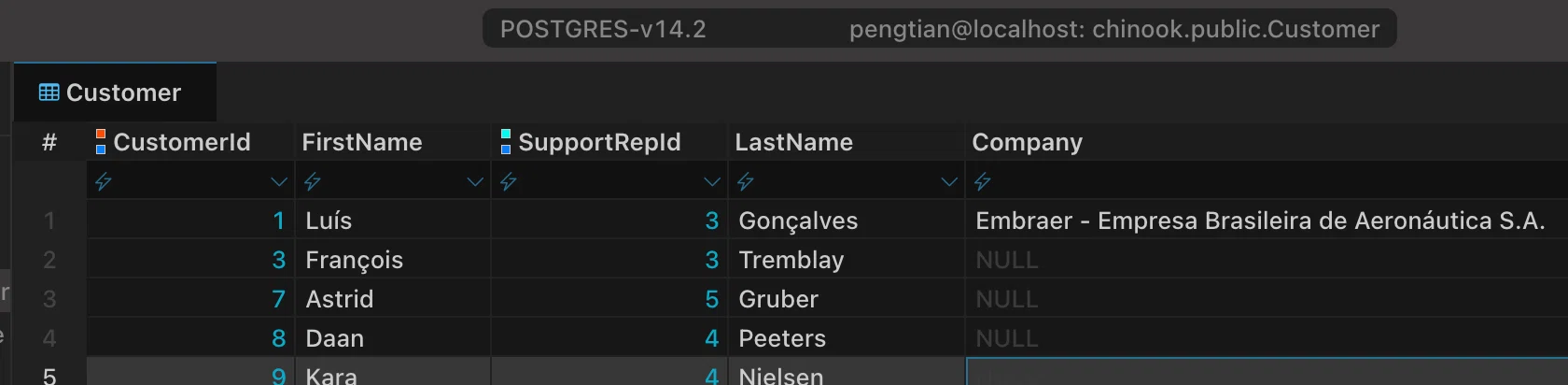
An orange-red bar (primary key) left of CustomerId and a blue bar (index) left of SupportRepId
- Hover a column header to see its type, nullability, foreign keys, and comment in the tooltip.
- To hide these color bars, turn off Enable columnCons Color (Display column constraints color) in the settings.
Value colors
Values are colored by type for quick recognition:
| Type | Color |
|---|---|
| number | Cyan #00adcc |
| decimal | Orange #de7a0e |
| date / time | Blue #258ef1 |
| blob / clob | Gray-purple #9eadcf |
| geometry | Purple #9563f7 |
NULL | Gray text |
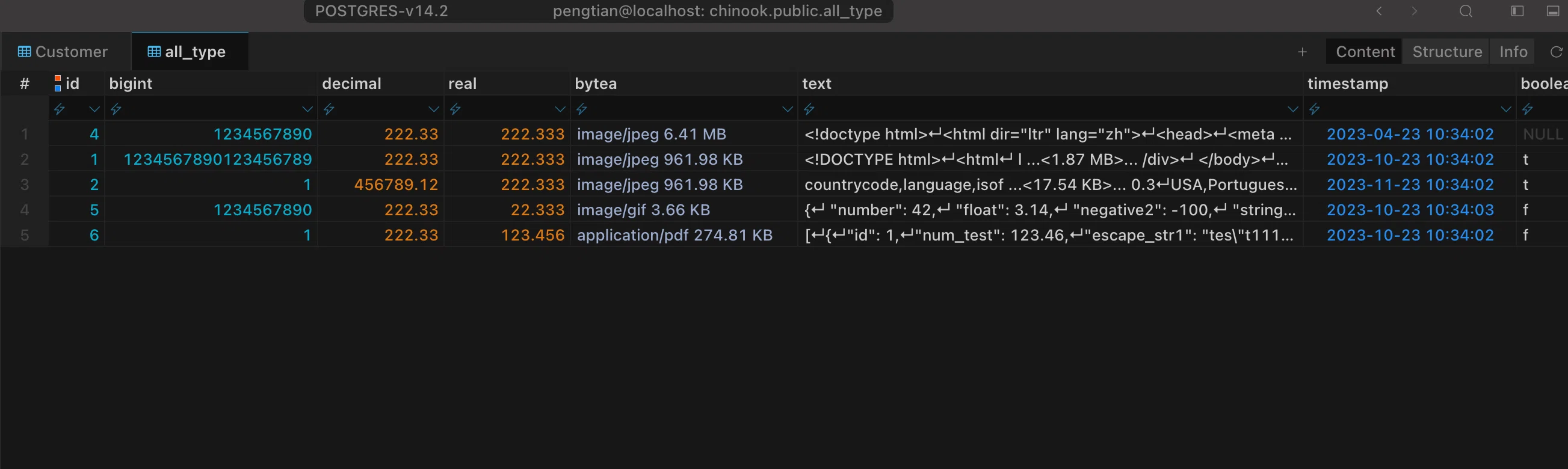
Types shown in one table: decimal in orange, timestamp in blue, bytea with MIME type and size, NULL in gray
Row state has its own colors: new rows in green, rows pending deletion in red, modified rows in blue, and search hits highlighted in yellow.
Bottom panels
Below the data area is a row of panels, switched by tab, each showing the current result set from another angle:
| Tab | Purpose | See also |
|---|---|---|
| FILTERS | Show filter conditions as a table; add, remove, sort, and locate them | Filter |
| ROWS | Expand fields row by row, good for long text and images | Rows |
| CELL | Full contents of the current cell and an editor | Basic Editing, Binary & Image, JSON Editing |
| OUTPUT | Statements that ran, timings, and errors | — |
| Raw SQL | Below the FILTERS panel, showing the final SQL | Filter |
Drag to resize the panel; the arrow at the top right expands it to the full window for large blocks of text or images.
Paging & row count
Opening a table fetches only the first rows instead of loading the whole table into memory; scrolling to the bottom loads the next page. The left and right arrows in the bottom toolbar page through results (Cmd+Shift+[ / Cmd+Shift+], win: Ctrl+Shift+[ / Ctrl+Shift+]).
The status bar shows the current result’s row count and two timings, for example Rows 59 in table 22ms (31ms): the value before the parentheses is Query Time and the value inside is duration Time.
Column width & overflow
- Drag a column border to resize it.
- Content wider than the column is truncated; hover to see it in full.
- The icon at the right of the column header opens the column menu to control which columns are shown.
Status bar
The status bar at the very bottom of the window gives the current context:
| Field | Meaning |
|---|---|
| Rows N in table | Result row count and two timings: Query Time before the parentheses, duration Time inside |
| Length | Length of the selection |
| Selected | Number of selected cells |
| Row x,Col y | Cursor row and column |
| Editable / Read Only | Whether the current result is editable |
Shortcuts
| Action | Shortcut |
|---|---|
| Search in results | Cmd+F, win: Ctrl+F |
| Add row | Cmd+N, win: Ctrl+N |
| Duplicate row | Cmd+D, win: Ctrl+D |
| Delete row | Cmd+Backspace, win: Delete |
| Refresh data | Cmd+R, win: Ctrl+R |
Find/Replace in Data
Find content in the result set without changing filters; it only locates and highlights matches.
Open it from the Find/Replace in Data button in the toolbar or the same item in the data area’s context menu; shortcut Cmd+F (win: Ctrl+F).
▶ Tutorial: Find in data
Open search → highlight matches → expand replace
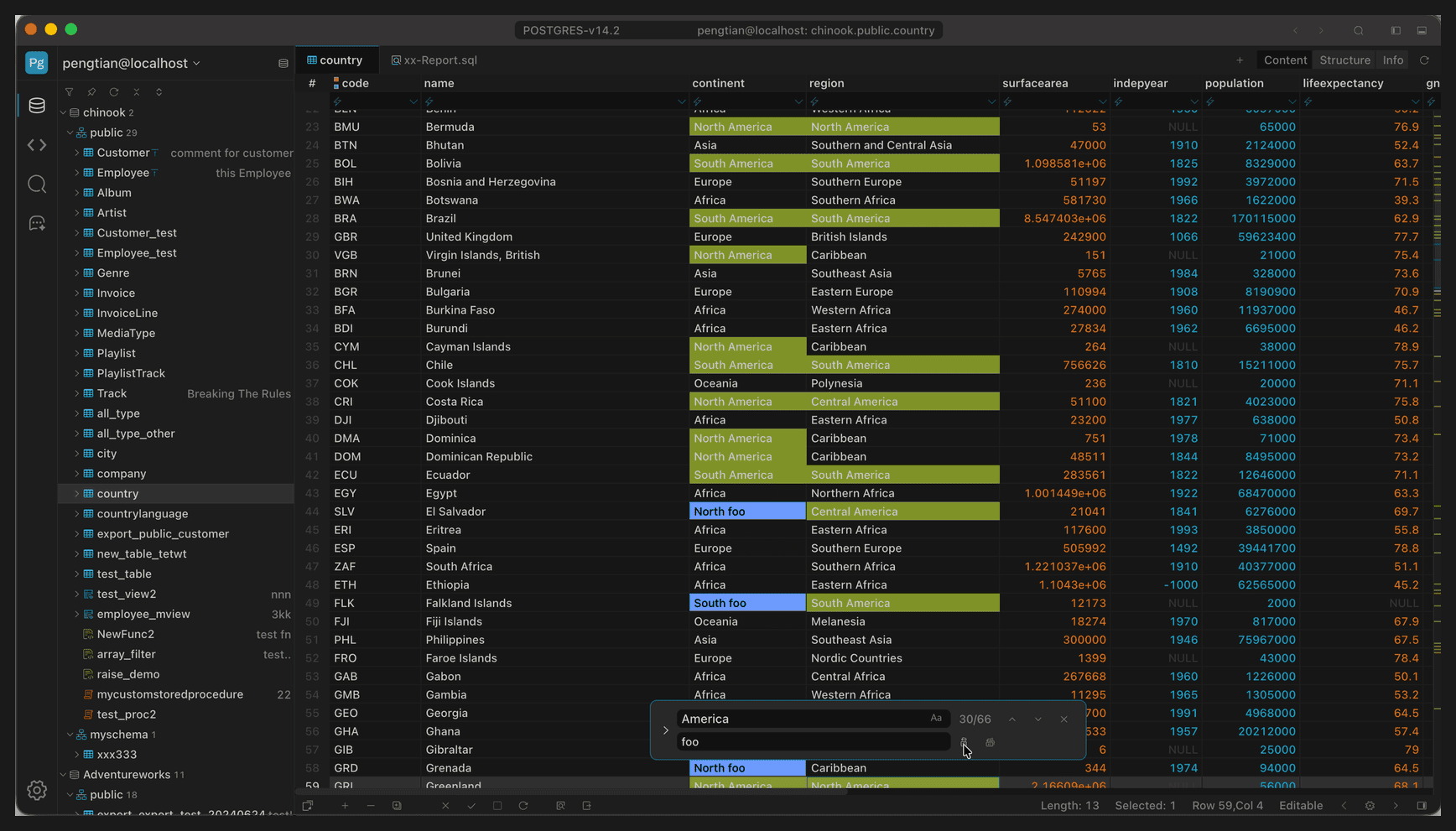
Searching for America highlights matches in green and shows 5/69 on the right
Search bar
The search bar floats at the bottom of the grid and contains:
| Element | Action |
|---|---|
| Input box | Type a keyword and press Enter to search |
Aa | Case-sensitivity toggle |
5/69 | Current match number and total matches |
| ⌃ / ⌄ | Jump to the previous / next match |
| × | Close the search bar and clear highlighting |
> on the left | Expand the replace input box |
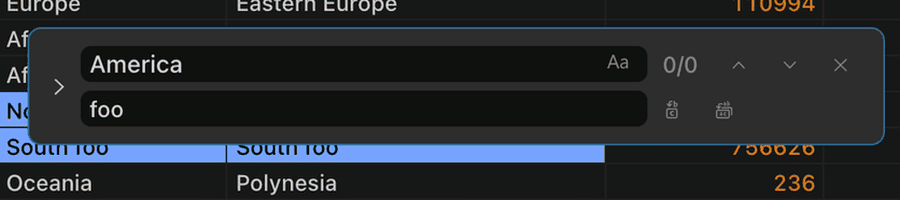
The search bar with the replace input expanded
Search syntax
| Form | Example | Meaning |
|---|---|---|
| Contains | America | Contains this text |
% prefix | %America | Ends with America |
% suffix | America% | Starts with America |
| Regex | /^America$/ | Match as a regular expression |
Replace values
Click the > at the left of the search box to expand Replace with, enter the replacement, then:
| Button | Action |
|---|---|
| Replace | Replace only the current match |
| Replace All | Replace all matches |
Replacing changes values in cells, which are still uncommitted; click Apply back in the grid to write them to the database, or Revert to discard them.