
Basic Editing
Double-click a cell, or select it and press Enter, to start editing, then type the new value and press Enter to confirm. Changes stay in the UI first, and highlighted cells indicate they are not yet committed.
▶ Tutorial: edit a cell
Change a value → commit → review OUTPUT
Apply & revert
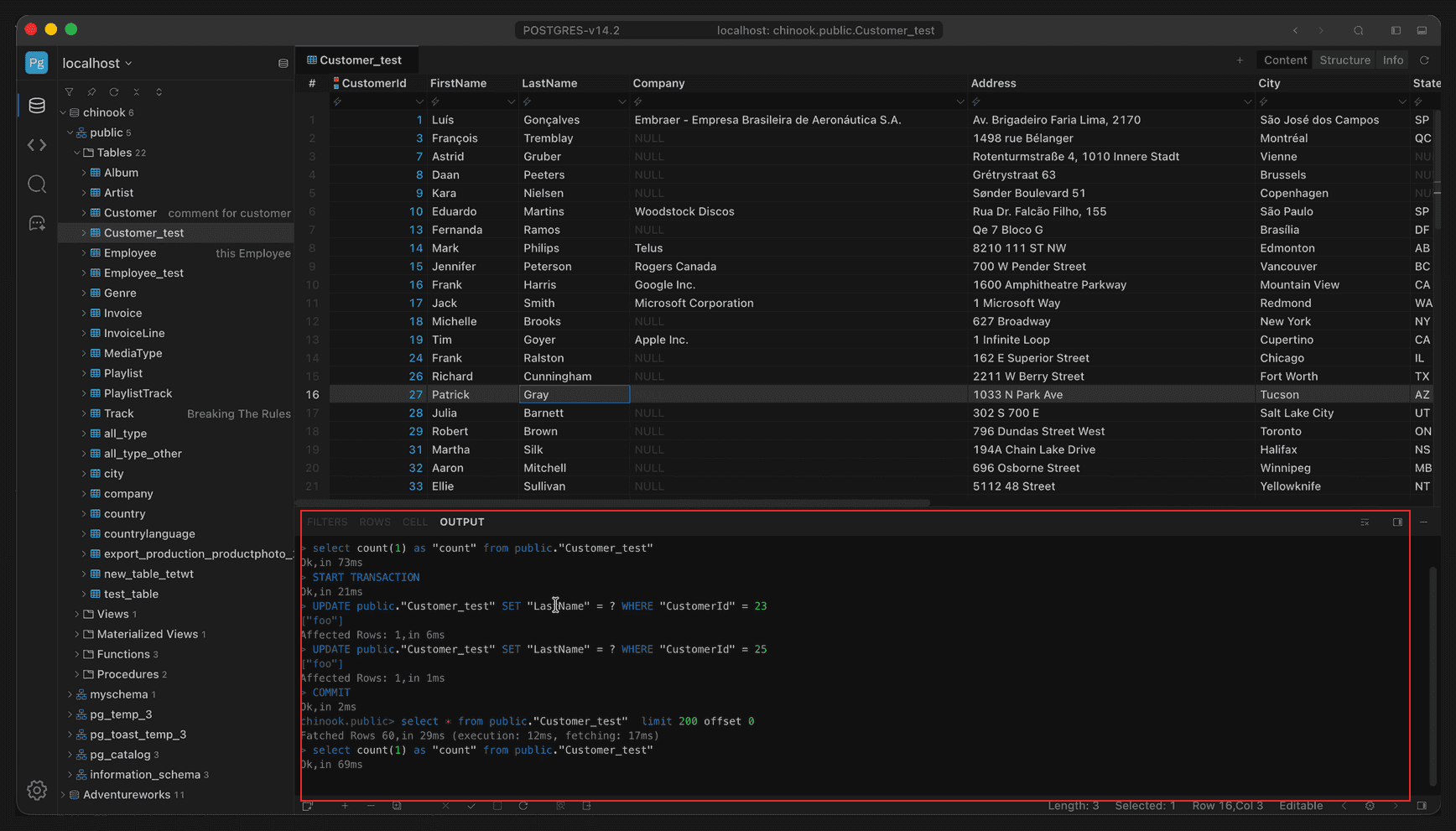
Full-window view; the red box marks the UPDATE statement recorded in OUTPUT
| Action | Description |
|---|---|
| Apply | Commits all changes; the OUTPUT at the bottom shows START TRANSACTION, UPDATE …, Affected Rows, and COMMIT |
| Revert | Discards changes and restores the values from the database |
After committing, the statements in OUTPUT are the source of truth: updates that can target a single row carry a primary key condition, while tables without a primary key cannot be pinpointed.
Committing also verifies the affected row count: each UPDATE is expected to affect 1 row. If the database returns any other number (for example 0, meaning someone else changed or deleted the row), the commit is aborted with an error:
Update failed, expected 1 changed but 0- Databases that use transactions roll back automatically, reverting all changes.
- The check relies on the driver reporting affected rows; databases that do not return this information cannot perform the check.
- The number in the message is the affected row count actually returned by the database.
Cell editors
Cells switch editors by field type:
| Field type | Editor |
|---|---|
| Plain text, numbers | Single-line input; edit the value directly |
| Long text, notes | Multi-line text editor with line breaks |
Press Enter to confirm and move to the next row, so you can keep editing the same column without reaching for the mouse again.
Edit bar
After checking Toggle Edit bar in the right-click menu, an edit bar appears above the grid, grouping commit actions and row operations:
| Button | Action |
|---|---|
| + | Add row: adds a row with the primary key left blank for you to fill |
| − | Delete row: marks the selected rows for deletion, effective after commit |
| ⧉ | Duplicate row: duplicates the selected rows |
| × | Revert: discards all changes |
| ✓ | Apply: commits changes |
| □ | Stop: stops the current execution |
| ↻ | Refresh: reloads the data |
| ▤ | Preview: previews the SQL to be executed |
| ⇥ | Close the edit bar |
SQL preview: clicking Preview opens the statements about to run; confirm before executing, which is useful for checking bulk changes.
The edit bar also shows the full text of a cell: select a long-text cell and its content appears in this row, editable in place.
Value editor
Right-click Show Value Editor to open a single-value editor, which suits JSON, binary, and very long text fields that are awkward to edit in the grid; Show Rows Editor lays out the whole row vertically by field.
Set NULL / Set Empty
There are two ways to clear a cell after selecting it, and they mean different things:
| Action | Shortcut | Result |
|---|---|---|
| Set NULL | Backspace | The field value is NULL, meaning no value |
| Set Empty | Right-click → Set Empty | The string is written as an empty string '' with length 0 |
NULL participates in is null checks and an empty string does not; they also behave differently in queries and unique constraints, so choose by business meaning.
Add & delete rows
Row add and delete live in the right-click menu and are reflected directly in the commit statements:
| Action | Shortcut | Description |
|---|---|---|
| Add row | Cmd+N, win: Ctrl+N | Adds a row at the end of the result; a green row number means uncommitted |
| Duplicate row | Cmd+D, win: Ctrl+D | Duplicates the current row, useful for inserting similar data |
| Delete row | Cmd+Backspace, win: Delete | Marks the row for deletion, effective after commit |
Added or deleted rows can be undone with Revert before committing. After committing, OUTPUT lists the statements in order, for example:
START TRANSACTION
INSERT INTO public."Customer_test" (...) VALUES (...)
DELETE FROM public."Customer_test" WHERE "CustomerId" = 17
COMMIT
Fill in the primary key for a new row yourself; auto-increment columns or columns with defaults can be left blank.
Keyboard shortcuts
| Action | Shortcut |
|---|---|
| Start editing | Enter |
| Confirm and move down | Enter |
| Add row | Cmd+N, win: Ctrl+N |
| Duplicate row | Cmd+D, win: Ctrl+D |
| Delete row | Cmd+Backspace, win: Delete |
Set to NULL | Backspace |
| Find in results | Cmd+F, win: Ctrl+F |
Multi-select means selecting several cells at once: drag out a rectangular range, or hold Cmd / Ctrl and click non-adjacent cells. Editing the whole range in one pass is much faster than going cell by cell.
There are three common ways to edit: type a uniform value, paste a block of copied content, or set a whole range to NULL. All three only change the UI; click Apply to write to the database.