
Query
Query Editor is where you write SQL. A single file can hold many statements, separated by ; or a newline; they run one by one, and each statement gets its own result tab below.
▶ Tutorial
Multiple statements → run selection / Run All → one result tab each → Output records timings and errors
Editor layout
| Area | Notes |
|---|---|
| File tabs | The current SQL file (for example Query Editor 1.sql); several can be open at once |
| Toolbar | Run and its dropdown, plus open, format, AI, and settings buttons |
| Editor | Syntax highlighting, line numbers, current-line highlight; separate statements with ; or newlines |
| Top right | Schema selector, Ln, Col position, Spaces indentation, UTF-8 encoding |
| Result area | Output log and RESULT-1, RESULT-2, … tabs |
Statements
- Separate statements with
;or with a plain newline; the two styles can be mixed. - A line starting with
--is a comment and does not run. - With a selection,
Run Currentruns only the selected text; without one, it runs the statement under the cursor. - Statements run in the order they appear, and results and log entries follow the same order.
Run menu
Click the dropdown next to Run:
| Command | What it does |
|---|---|
| Run Current | Run the current statement, or the current selection |
| Run All | Run every statement in the file (split on ; or newlines), sending and returning them one at a time |
| Run as Script | Send the whole file as one request; all statements run inside one transaction |
| AI Assistant ▸ | Hand the SQL to AI Chat to explain, fix, or optimize |
| Reload | Reload the file from disk |
| Beautify Sql | Format SQL with consistent casing and indentation |
| Return on Error | Stop at the first error instead of continuing |
| Find / Replace | Find and replace inside the editor |
| Cut / Copy / Paste | Standard editing commands |
| Refactor ▸ | Rename tables or aliases and update every reference |
| Fold / Select All | Fold code or select everything |
Choosing a run mode
| Situation | Use |
|---|---|
| Debugging a single statement | Run Current (select it first if needed) |
| Running all queries in a file once | Run All |
| Scripts that must run in sequence, such as DDL plus bulk inserts | Run as Script |
The key difference between Run All and Run as Script is transactions:
| Run All | Run as Script | |
|---|---|---|
| Sending | One statement per request | Whole file in one request |
| Transactions | Each statement commits on its own | All statements share one transaction |
| Speed | One round trip per statement | A single round trip, noticeably faster for bulk writes |
| Failure midway | Later statements still run (unless Return on Error is on) | The whole block is one transaction; earlier writes do not take effect on their own |
Schema context
The top right of the editor shows the current database and schema (for example open_demo.public). Clicking it opens a searchable schema list:
- The search box filters by name;
Reseton the right clears it. display buildin schemascontrols whether system schemas such asinformation_schemaare listed.- After choosing one, unqualified table names resolve against that schema.
Switching schema only affects later runs; it never rewrites SQL you already wrote.
Output
Every run leaves a record in Output, roughly like this:
open_demo.public> select * from customer c where c.email is not null
Fetched Rows 20777, in 79ms (execution: 50ms, fetching: 17ms)- The first line is the statement that actually ran, prefixed with
database.schema. Fetched Rowsis the row count; the parentheses break out execution time and fetch time.- Errors are shown in red, for example
relation "address" does not exist. - With multiple statements, every entry is listed in order so you can check each one.
Outputbelongs to the current tab only; full history across sessions lives in Query History.
Results
- Each statement that returns rows gets a
RESULT-ntab, in execution order. - Result tabs support filtering, sorting, copying, and exporting; the status bar shows
Read Only. - Only row-returning statements such as
selectget a result tab;insert,update, anddeleteonly record affected rows inOutput.
Hover info
Hold Cmd on macOS or Ctrl on Windows / Linux and move the pointer over a table, column, or function to show an info card. Clicking while holding jumps to that object.
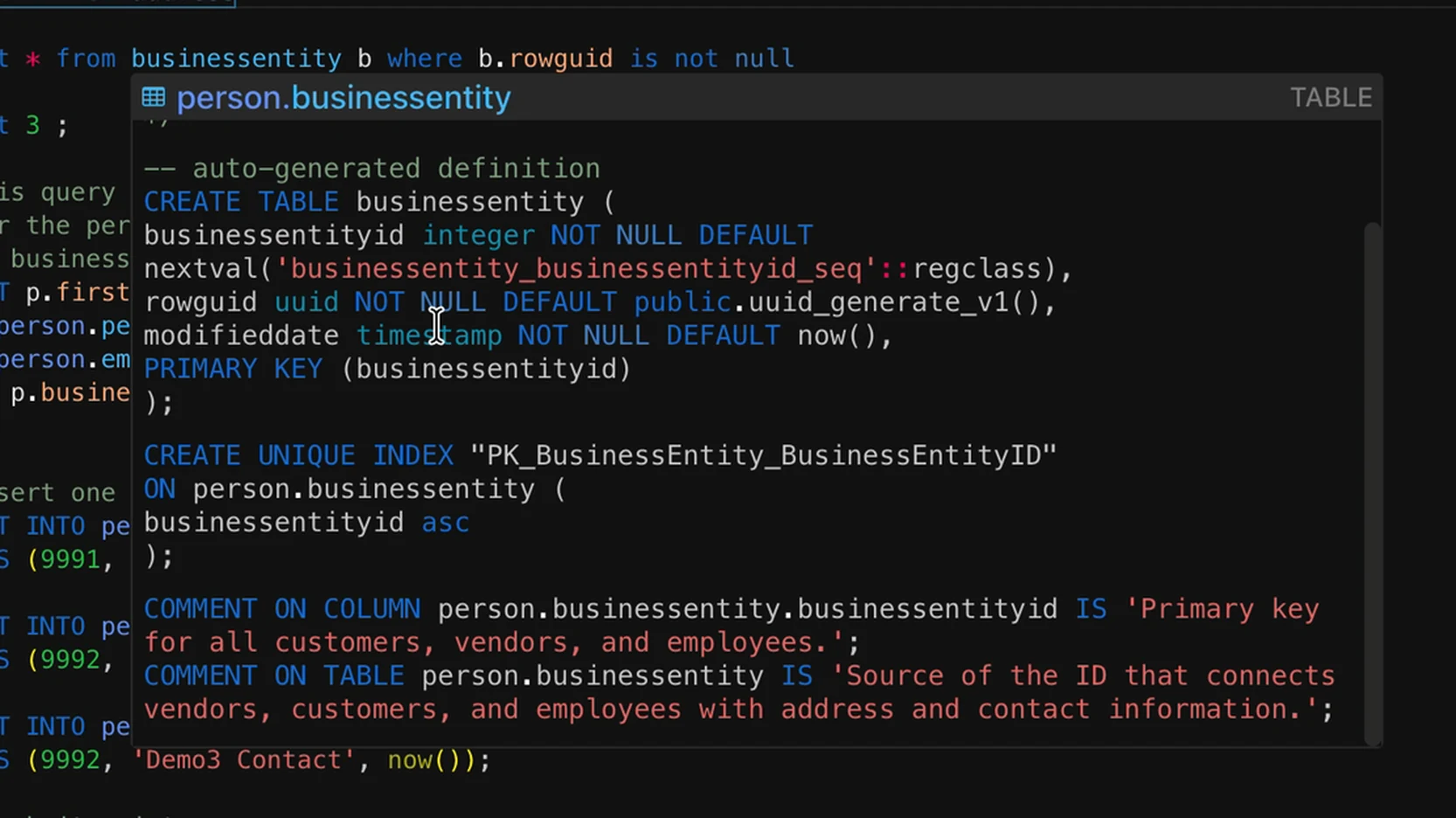
Holding Cmd over public.customer: the card shows the object type and its DDL
How to use
- Hold
Cmd/Ctrl. - Move the pointer over a table, column, or function name in the SQL.
- The word is underlined, the cursor becomes a hand, and the card appears.
- Click while still holding to jump to the object.
Release the key, scroll, click the editor, or move focus away to leave this mode.
Supported objects
| Type | Info card | On click |
|---|---|---|
| Table / view / materialized view | Object details | Opens the table’s Content view |
| Column | Column type, comment, and so on | Opens the table’s Structure and locates the column |
| Function | Function details | — |
schema, database, and aliases do not trigger the card.
Interaction notes
- The hold key is
SmartHitand can be changed in Keymap; it defaults toCmdon macOS andCtrlelsewhere. - Hover mode activates after about 50ms to avoid accidental triggers.
- Jumps use the database / schema on the token, falling back to the current connection when missing.
Script example
A table, an insert, and a query, written as one script and run with Run as Script:
CREATE TABLE demo_task (
    id    SERIAL PRIMARY KEY,
    title TEXT NOT NULL,
    done  BOOLEAN DEFAULT false
);

INSERT INTO demo_task (title) VALUES ('first'), ('second');

SELECT * FROM demo_task;
Steps:
- Write the whole script in the editor.
- Open the dropdown next to
Runand choose Run as Script (or pressRunto execute everything). - Follow each entry in
Output; theSELECTresult appears in theRESULT-1tab.
Notes:
- For DDL, inserts, and updates, double-check the statements and the target database before running.
- To stop at the first error, enable
Return on Errorfirst; behavior is described above. - Result tabs stay read-only; write operations only show up in the data and in
Output.
Multi-statement results
When several statements run together, each one reports success or failure on its own:
- A marker appears left of the line numbers: a green check for success, a red cross for failure.
Outputrecords them in order; write statements showAffected Rows: N, in Xms.- Failures are shown in red, for example
duplicate key value violates unique constraint "PK_ContactType_ContactTypeID". - A failing line offers
Fixon the right, which hands the statement to AI for repair. - Only statements that return a result set (
SELECT) create aRESULT-ntab;INSERT/UPDATE/DELETEonly appear inOutputwith affected rows.
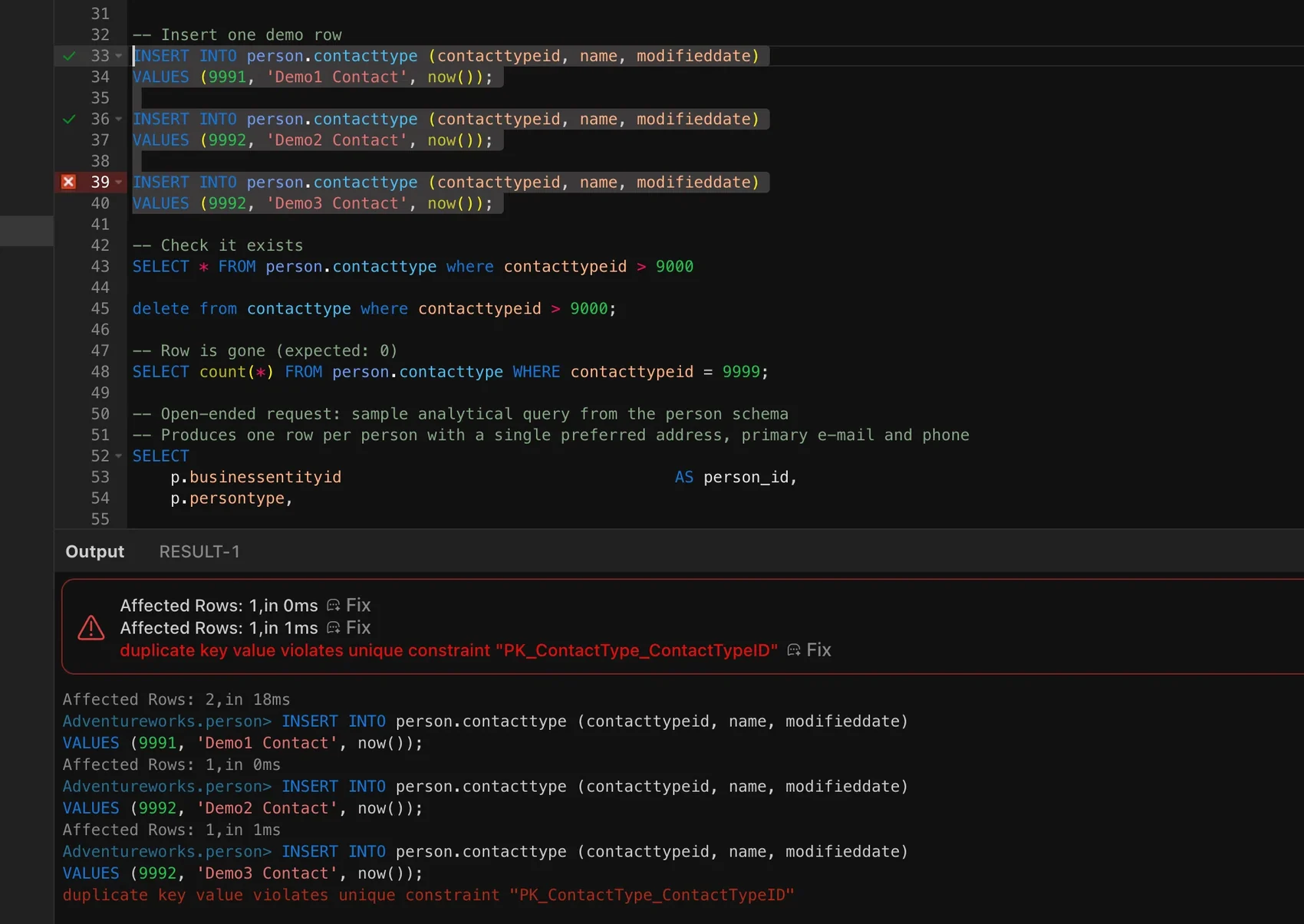
The first two inserts succeed (checks), the third fails on a duplicate key (red cross); Output lists affected rows and the error
By default, a failure does not stop the remaining statements. Enable Return on Error when you want it to.
Return on Error
Off by default: after one statement fails, the rest still run. When enabled, the run stops at the first error — useful for ordered scripts such as create table → insert → verify.
Editor commands
Beautify Sql: consistent casing and indentation, easier to read long scripts.Find/Replace: search within the current file,⌘F/Ctrl+F.Refactor: rename tables or aliases and update references in the file; default keyF2(see Keymap).AI Assistant: send the selected SQL to AI to explain, fix, or optimize; see AI Chat.
AutoComplete
Typing a table, column, or SQL keyword opens the completion list automatically, ordered by the context of the current statement.
What gets suggested
| Type | Notes |
|---|---|
| Keywords | SELECT, FROM, WHERE, and so on, in either case |
| Tables / views | Tables, views, and materialized views in the current schema |
| Columns | Columns of the tables used by the current statement |
| Aliases | Aliases already defined; also suggested when you pick a table name |
| Database / schema | Cross-database and cross-schema references |
| Functions / procedures | Built-ins plus functions and procedures in the current database |
| Data types | Types used when creating tables or altering columns |
Context behavior
- After
FROM, tables and views come first; afterWHEREorON, columns come first. - Picking a table name suggests an alias based on its initials when none exists yet (for example
customer_order→co). - Aliases already used in the statement are not suggested again.
Doc hints
When columns and tables carry comments, the completion list shows those comments on the right (controlled by Enable Doclet), so you do not have to check Structure for field meanings.
Alias suggestions
After inserting a table name, with Enable Auto Alias on, the editor shows a grey alias suggestion after the cursor. Aliases are not arbitrary; the rules are:
- Only tables and views get one; columns and functions do not.
- Split the table name on
_, take the first letter of each part, and lowercase it:customer_order→co,address→a. - If the result starts with a digit, prefix it with
t. - Deduplicate against aliases already in the statement, in this order:
| Case | Suggested value |
|---|---|
co is free | co |
co is taken and is two letters | Fall back to the first letter, c |
c is also taken | co2 |
co2 is also taken | Find the highest numeric suffix on co and add one (for example co3) |
Only two-letter aliases fall back to one letter; three-letter or longer aliases (such as coi) simply gain a numeric suffix when taken.
Accepting and dismissing:
Tabaccepts the suggestion and writes the alias into the statement.Escdismisses it.- Moving the cursor away hides it.
Example: in one statement, FROM customer_order suggests co; then JOIN customer_order_item suggests coi, unless coi is taken, in which case it falls back to co or coi2.
Settings
Completion is configured under Preferences → Settings → AutoComplete:
Keywords Case: automatically upper- or lowercase keywords, or follow the database.Enable Add Space: insert a space after keywords (always afterFROM).Enable Auto Alias: suggest aliases after table names.Enable Doclet: show column comments in the list.Disable Auto Complete: turn completion off entirely.
Defaults for every option are listed in Settings.
Status bar
The bottom of the editor shows the row count and two timings for the current statement, for example Rows 20,777 in table 73ms (96ms):
| Position | Meaning |
|---|---|
73ms before the parentheses | Query Time: from sending the request to receiving the result column metadata |
96ms inside the parentheses | duration Time: the full load, including fetching and rendering, usually larger than the first |
Hovering the timings shows the full tooltip: Query Time: … , duration Time: …. With no rows returned, the bar reads No Rows in table.
When results are read-only, Read Only appears on the right.
Shortcuts
Default keys for Run Current, Run All, and the rest are in Keymap.