
Filter
Three entry points: the column filter row, the FILTERS panel, and Raw SQL. Changes take effect immediately with no need to click Apply, and conditions across multiple columns are joined with and.
▶ Tutorial
Filtering demo: column filter row, value list, FILTERS panel, and Raw SQL
Filter row
Every column has a filter box below its header, and each accepts two forms. The lightning icon to the left of the box toggles filtering for that column: click once to disable it, and the icon turns gray with the input no longer editable; click again to restore it.

Column filter row: IN (...) typed in the name column for multi-value matching; the lightning icon at the left of each column toggles that column’s filter
Normal mode: type a value or a SQL fragment directly.
| Form | Example | Description |
|---|---|---|
| Contains | foo | Equivalent to like '%foo%'; not an exact match |
| Exact match | = foo | Equivalent to = 'foo'; the value must match exactly |
| Prefix / suffix | %foo, foo% | Ends with / starts with foo |
| Comparison | =1, >1, <=10, !=1 | Numeric or string comparison |
| Null check | is null, is not null | Test for null |
| Set | in (1,2,3), not in ('a','b') | Multi-value match |
| Pattern | like '%foo%', not like '%foo%' | Explicit LIKE |
| Range | between 10 and 20 | Inclusive range |
Raw SQL mode: a leading @ treats the input as a SQL expression, and ? stands for the current column.
| Form | Example |
|---|---|
| Apply a function to the column | @substr(?,2) = 'foo' |
| Column-to-column expression | @(? > 100 OR ? - price > 10) |
Two escape forms:
??stands for a literal question mark (not treated as the column placeholder).@@stands for a literal@:@@foois not parsed as Raw SQL, which lets you filter data whose content itself starts with@.
Value list: click the dropdown to the right of the filter box to list the distinct values already present in that column.
- Each entry shows its occurrence count, with
NULLandEMPTYlabeled separately. - Selecting several items filters with
in (...). - The Filter: input at the top narrows the value list further, and
CNT nat the bottom shows the current count.
Quick actions: three buttons at the bottom of the value list.
| Button | Action |
|---|---|
| Include | Keep only the selected values |
| Exclude | Exclude the selected values |
| Between | Filter by range |
FILTERS panel
The FILTERS tab at the bottom expands the conditions into a table, which suits cases with many conditions that need fine control:

FILTERS panel: one condition per row, with focus, reorder, and delete
| Column | Description |
|---|---|
| Focus | When selected, the grid scrolls to and locates the column for that condition |
| Column Name | Choose the target column |
| Filter Value | Condition value, with the same syntax as the column filter row |
| Operate | Shows the current operator |
| Comment | A note |
| DataType | Type and constraint information for the column |
Each row can be added, deleted, moved up, or moved down on the right; condition order affects the generated SQL.
All Columns: set Column Name to All Columns and enter a value in Filter Value to match across every column (placeholder Search across all columns...). Useful when you are not sure which column holds the value and do not want to try them one by one.
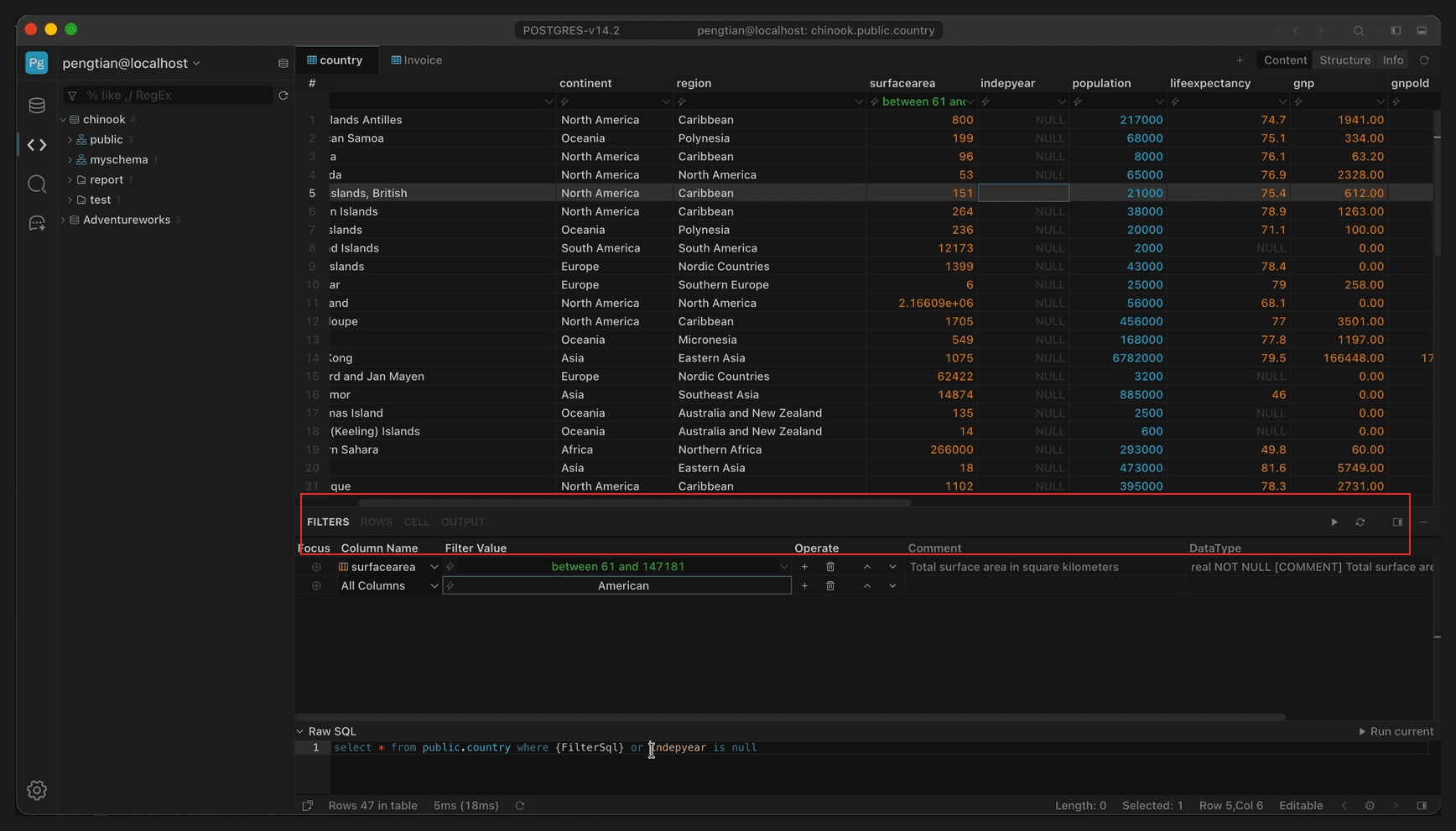
Column Name set to All Columns: entering American matches across all columns
Raw SQL
Below the FILTERS panel, Raw SQL is collapsed and shows the statement that will actually run:

Raw SQL: shows the final statement, where {FilterSql} is the condition placeholder
{FilterSql} is where the panel conditions go. You can edit this SQL directly and click Run current on the right to run it; the edited conditions are merged with the column filter row conditions into the same WHERE.
Sorting
Click a column header to sort, and click again to toggle ascending / descending; hold Shift and click multiple columns to combine sorts, with the header showing a number for priority.
Clearing filters
- Single column: clear the content of its filter box.
- All columns: delete every condition in the FILTERS panel, or clear the
WHEREpart of the Raw SQL.
Quick filter
Select one or more cells in the data area, right-click → Quick Filter, and the menu generates a set of conditions from the selected values; click one to apply it:
| Menu item | Generated condition |
|---|---|
Column name = value | = 'value' |
Column name <> / > / >= / < / <= | The corresponding comparison |
Column name LIKE '%value%' / NOT LIKE '%value%' | Pattern match |
Column name IN (…) / NOT IN (…) | A list built from the deduplicated selected values |
Column name IS NULL / IS NOT NULL | Null check |
| Clear All Filter | Clears filters on all columns |
- When multiple columns are selected, each column generates its own condition.
- After applying, it is equivalent to typing in the column filter row: the condition appears in the FILTERS panel and can be edited further.
- Good for filtering on a value you can see, without typing the syntax by hand.
Filter query results
After running complex SQL in Query (CTEs, window functions, aggregate reports), the grid in the RESULT-n result tab supports filtering the same way as table data.
Query result → column filter → value list → quick filter
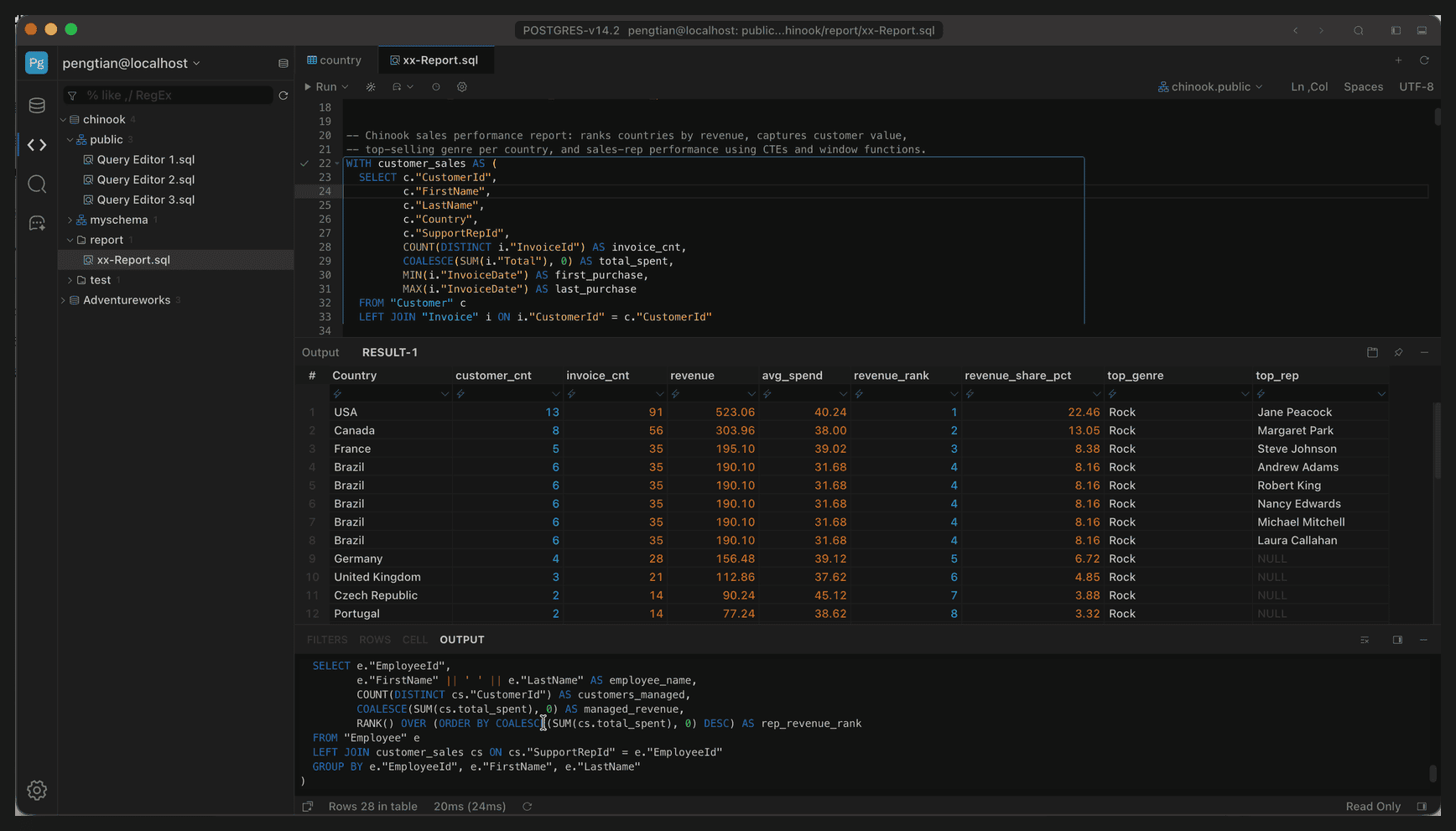
Entering =14 in the customer_cnt column of RESULT-1
- The column filter row, value list, and FILTERS panel all work; Include / Exclude / Between in the value list behave the same.
- These results are usually read-only: the right side of the status bar shows
Read Only, so you can filter, sort, and search, but not edit values or add or delete rows. - Useful for running a report first and then drilling down by column within the result set; filtering only affects the current result and does not rewrite the original SQL.
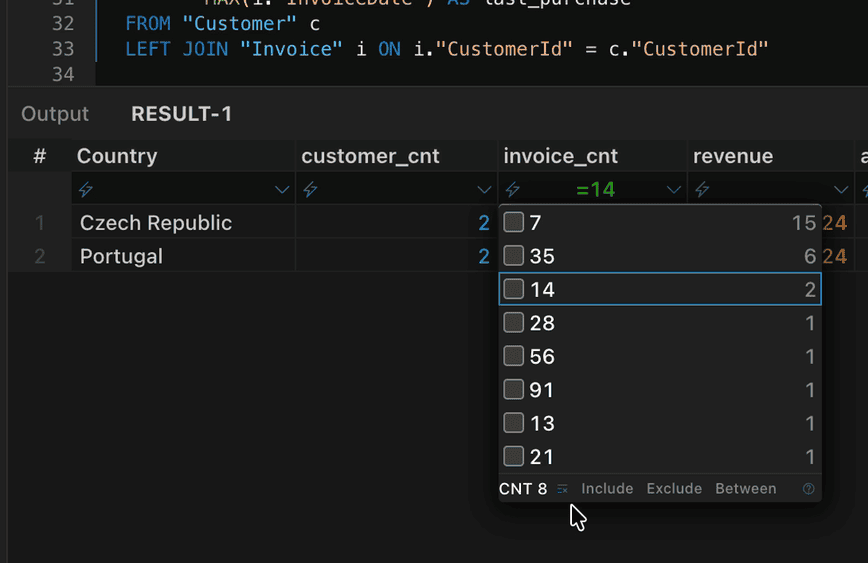
The value list shows occurrence counts, with Include / Exclude / Between at the bottom