
Binary & Image
Binary columns (such as PostgreSQL bytea) show the MIME type and size in the grid, for example image/jpeg 6.41 MB; select one and switch to the CELL tab at the bottom to preview the content directly.
▶ Tutorial
Preview → right-click menu → replace
Preview images
An image column can be previewed in three places without exporting a file:
Inline editor (double-click the cell)
- Double-clicking an image cell starts editing and expands an inline preview area above the cell that shows the image directly.
- The preview area has zoom and import/export buttons for quick confirmation of the content.
- For a larger view or more information, switch to the CELL panel at the bottom; both show the same data.
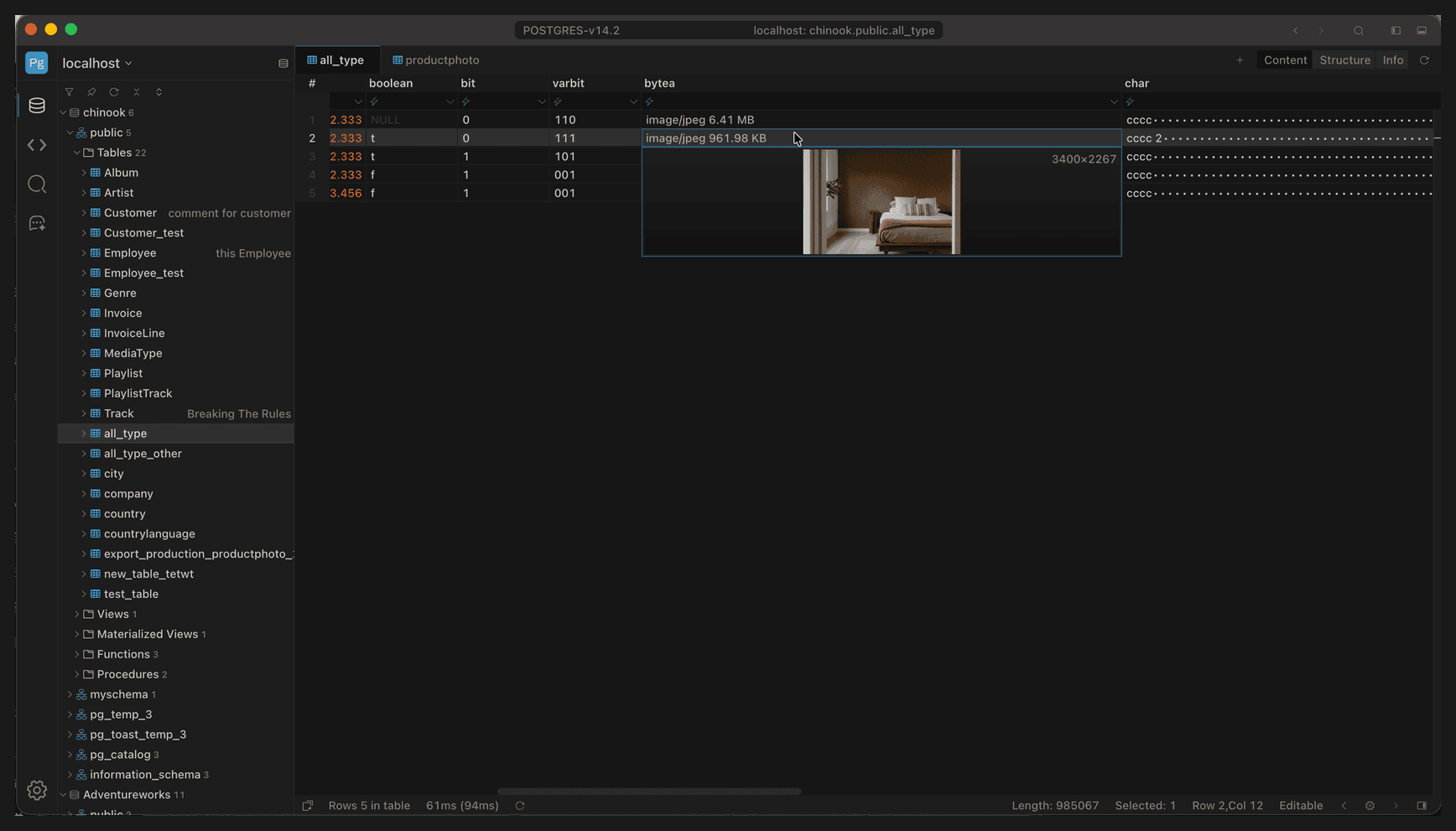
Double-clicking an image cell: an inline preview expands above the cell, with the pixel dimensions in the top-right corner
CELL panel (single image, most detail)
- Select the image cell and switch to the CELL tab at the bottom.
- The image is shown at its original aspect ratio, with the pixel dimensions in the top-right corner, for example
3400×2267. - The toolbar at the bottom zooms: Zoom In / Zoom Out / Zoom 100% / Zoom Fit.
Lengthin the status bar is the byte count, which you can use to confirm the data volume.
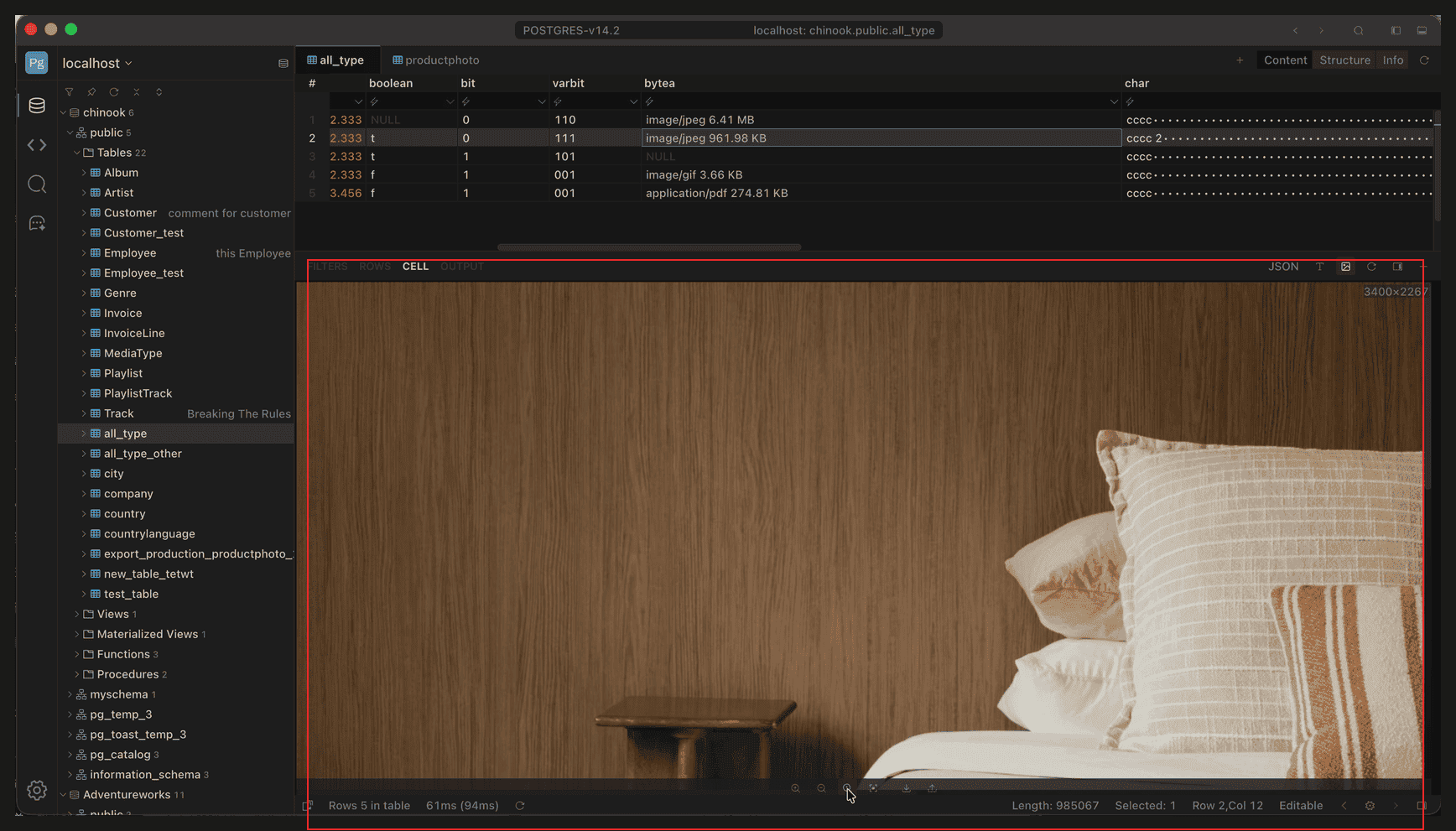
CELL panel: the image is shown at its original aspect ratio, with the pixel dimensions in the top-right corner
ROWS panel (comparing multiple rows)
- Switch to the ROWS tab at the bottom; image columns show thumbnails row by row.
- With multiple rows selected, thumbnails sit side by side for quickly comparing different images in the same field.
- Thumbnails are previews only; go back to the CELL panel to zoom in.
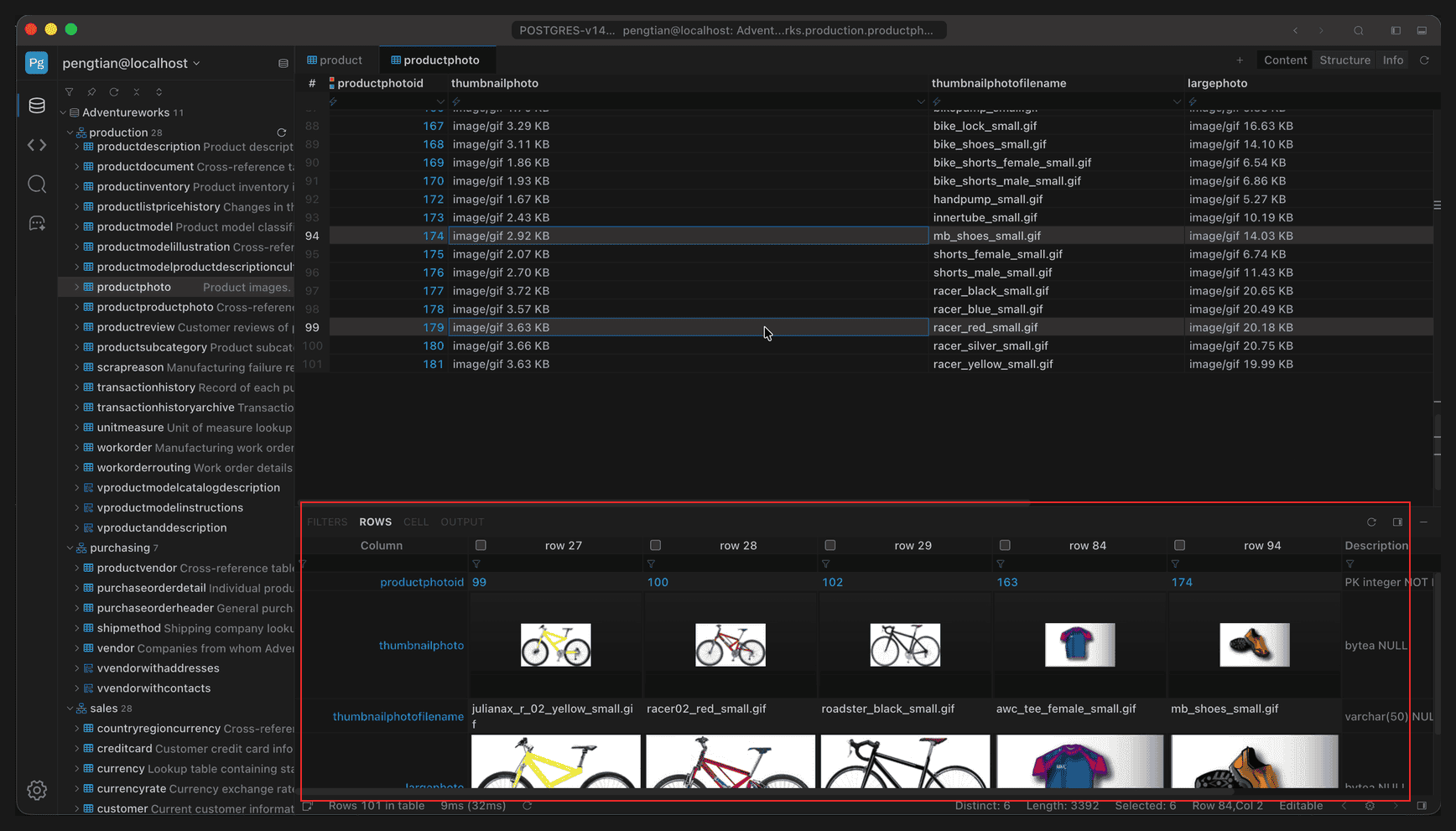
ROWS panel: thumbnails for images across multiple rows
Other binary content (PDFs, archives, and so on) has no image preview; the CELL panel shows read-only content or file information instead.
CELL toolbar
The CELL panel buttons fall into two groups: one switches editors, the other controls image viewing.
Editor switch (top-right of the panel):
| Button | Action |
|---|---|
| JSON | Switch to the JSON tree editor |
| Text icon | Switch to the plain text editor |
| Image icon | Switch to the image / file viewer |
| Refresh icon | Re-read the content of the current cell |
Image viewer toolbar (bottom of the content area, only for image columns):
| Button | Action |
|---|---|
| Zoom Out | Zoom out |
| Zoom In | Zoom in |
| Zoom 100% | Restore the original scale |
| Zoom Fit | Zoom to fit the panel |
| Save as … | Save the current binary as a file |
| Load File … | Choose a local file to replace the current content |
Non-image binary content shows only Save as … and Load File …, with no zoom buttons. The right-click menu also has Refresh and this same set of commands.
Add or replace binary
Binary columns do not accept typed text; both adding and replacing go through import or paste.
Option 1: import from a local file
- Select the target cell;
- Switch to the CELL tab at the bottom;
- Click Load File … at the bottom of the content area (or right-click → Load File);
- Pick a local file, and its content is written into the cell immediately.
Option 2: paste
Copy the binary from another cell in the grid (Cmd+C), select the target cell, and press Cmd+V (win: Ctrl+V). Use it on an empty cell to add content, or on a non-empty cell to overwrite it.
Points to note:
- After replacing, the cell shows the new MIME type and size; images preview at their original aspect ratio, and other types show read-only content.
- As with normal edits, the change remains uncommitted and needs Apply to be written to the database.
Save to a file
Right-click → Save File to export the current binary content to a local file; images are saved in their original format, which is useful for backing up before replacing.
Set NULL vs Set Empty
| Action | Result |
|---|---|
| Set NULL | The field value is NULL |
| Set Empty | The string is written as an empty string '' |
The two mean different things: NULL means no value, while an empty string is text of length 0; for binary columns, usually use NULL or Load File directly.