
JSON Editing
Cells in a json column can open a tree editor directly: objects and arrays expand level by level, and strings, numbers, and booleans are colored by type.
▶ Tutorial
Expand the structure → change values → add or remove properties → filter
Tree view
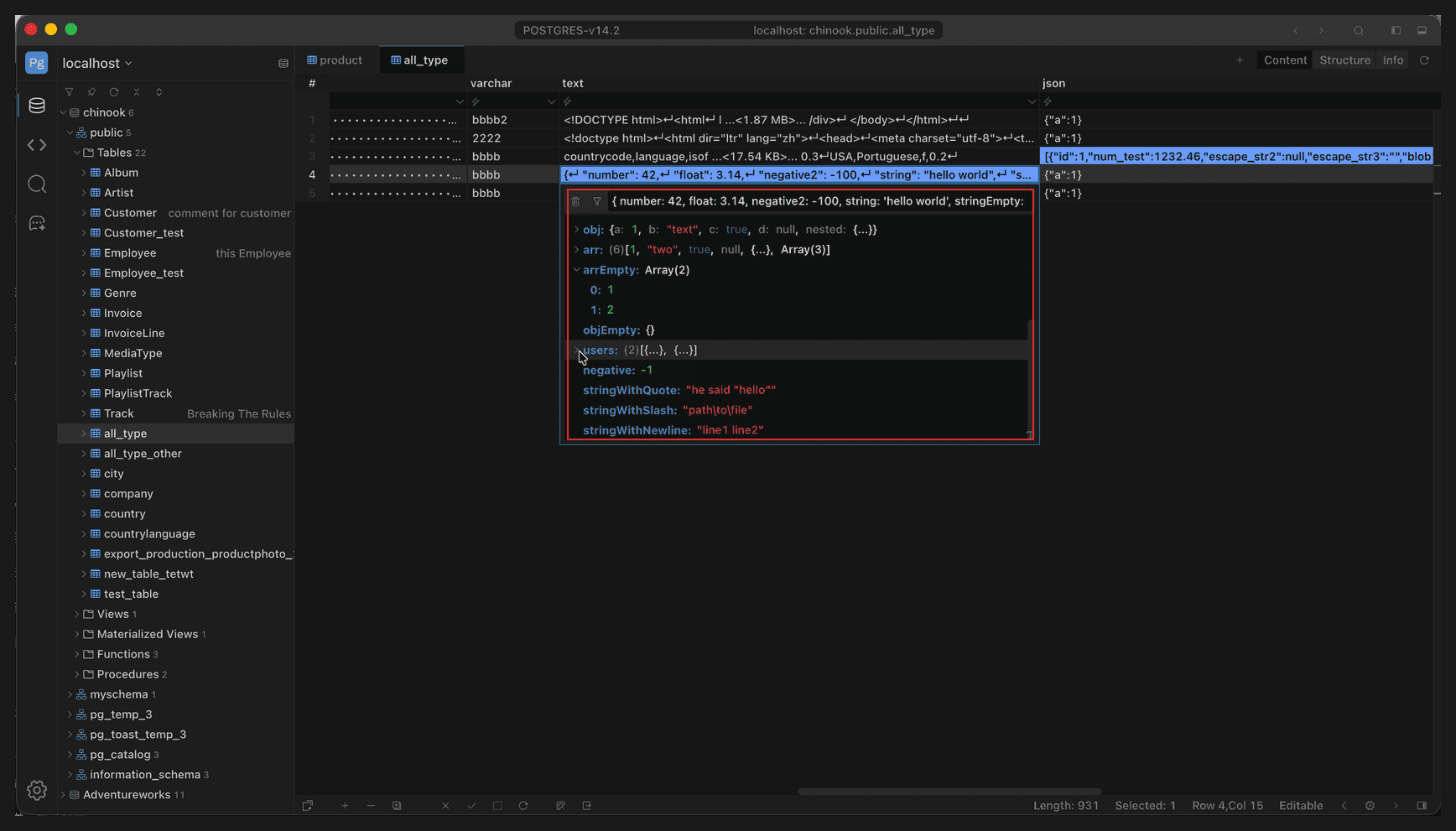
Full-window view; the red box marks the JSON value editor
- Keys are shown in bold, and values are colored by type: strings green, numbers blue, booleans purple,
nullgray. - Objects and arrays expand level by level, and a collapsed array shows its element count, for example
users: Array(2). - The top line shows the path of the selected node, for example
{"0": {name: "Alice", age: 25}}. - The CELL tab at the bottom contains the same editor, so you can edit directly in the panel.
Edit a value
- Click the node you want to change; the input at the top loads that node’s fragment, for example
{ number: 42 }. - Edit the value directly; strings need quotes:
{ number: 43 }. - Press
Enteror click outside the input to submit; the tree refreshes as soon as parsing succeeds.
The change is written to the cell only; you still need to return to the grid and click Apply to write to the database.
Add or remove a property
- Add a property: select the parent node and add an entry to the fragment, for example
{ name: "Alice", age: 25, sex: "f" }; after submitting, the new key is merged into the original object. - Modify a property: change only the value of that key; unmentioned keys stay unchanged.
- Remove a property: select the node and click the delete button in the toolbar; the editor sets the value to
{}and submits, which deletes the key from an object or removes the element from an array. - Array elements: arrays expand by index (
0,1, …), and editing an element is the same kind of operation as editing an object property.
Filter the tree
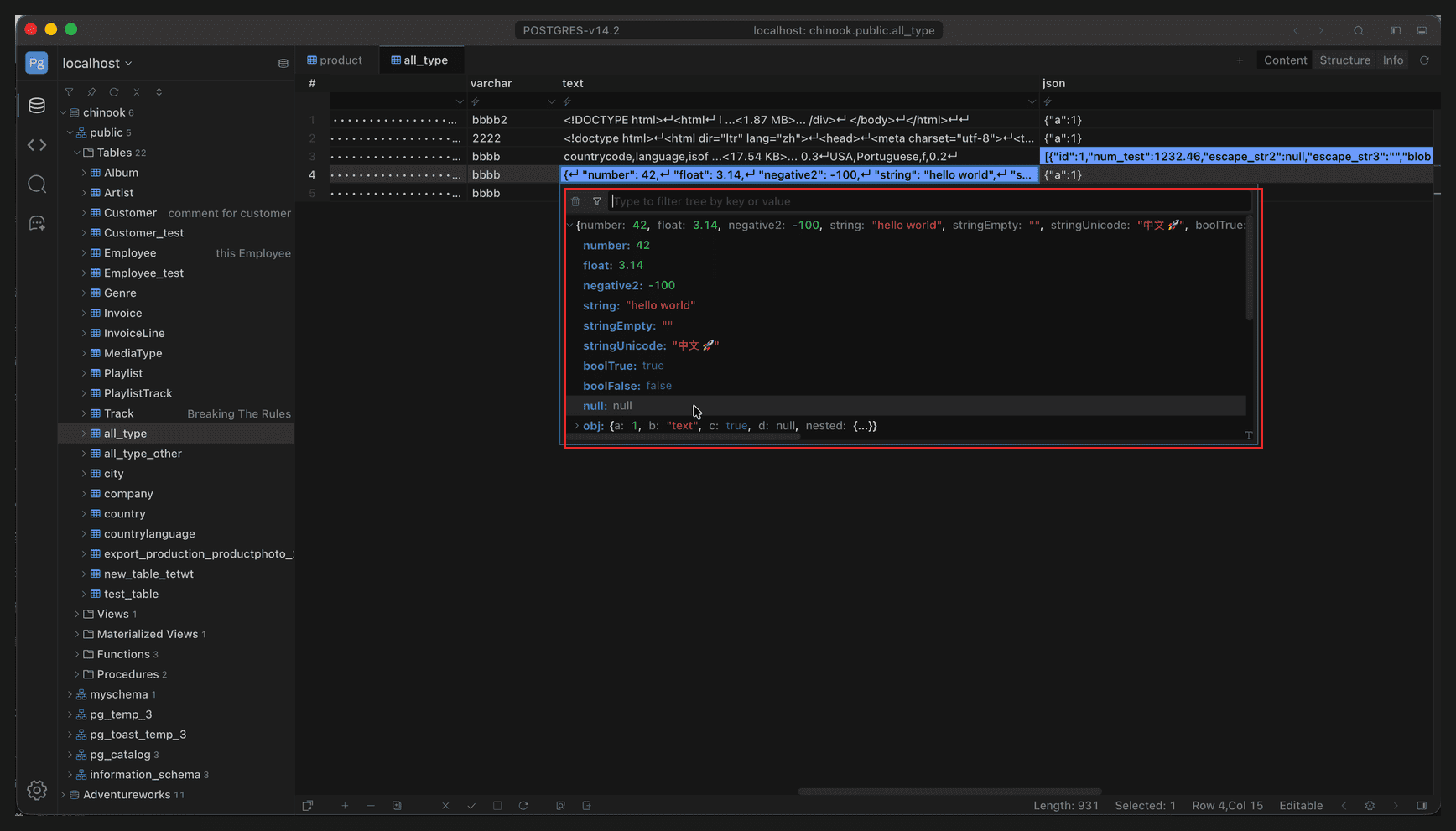
Full-window view; the red box marks the filter input
Click the funnel icon in the toolbar to switch to filter mode; the input prompts Type to filter tree by key or value:
- Filter by key or value; matching nodes are kept and the rest hidden.
- Press
Escto clear the filter and exit filter mode. - Filtering only affects display and does not change data; clearing it restores the full tree.
Errors and formatting
- If the input fragment is not valid JSON/JSON5, the editor shows a red error message at the bottom and the original value stays unchanged.
- Submitting preserves the original indentation; if the original field is JSON, the output is JSON, and if it is JSON5, the output is JSON5.