
Query Nav
What is queryNav
queryNav is the Query file panel for managing SQL files: organize them in folders, attach them to a schema, and double-click to open one in the editor. The files are ordinary .sql files on disk; the panel only organizes and indexes them.
▶ Tutorial
File tree → context menu
Panel layout
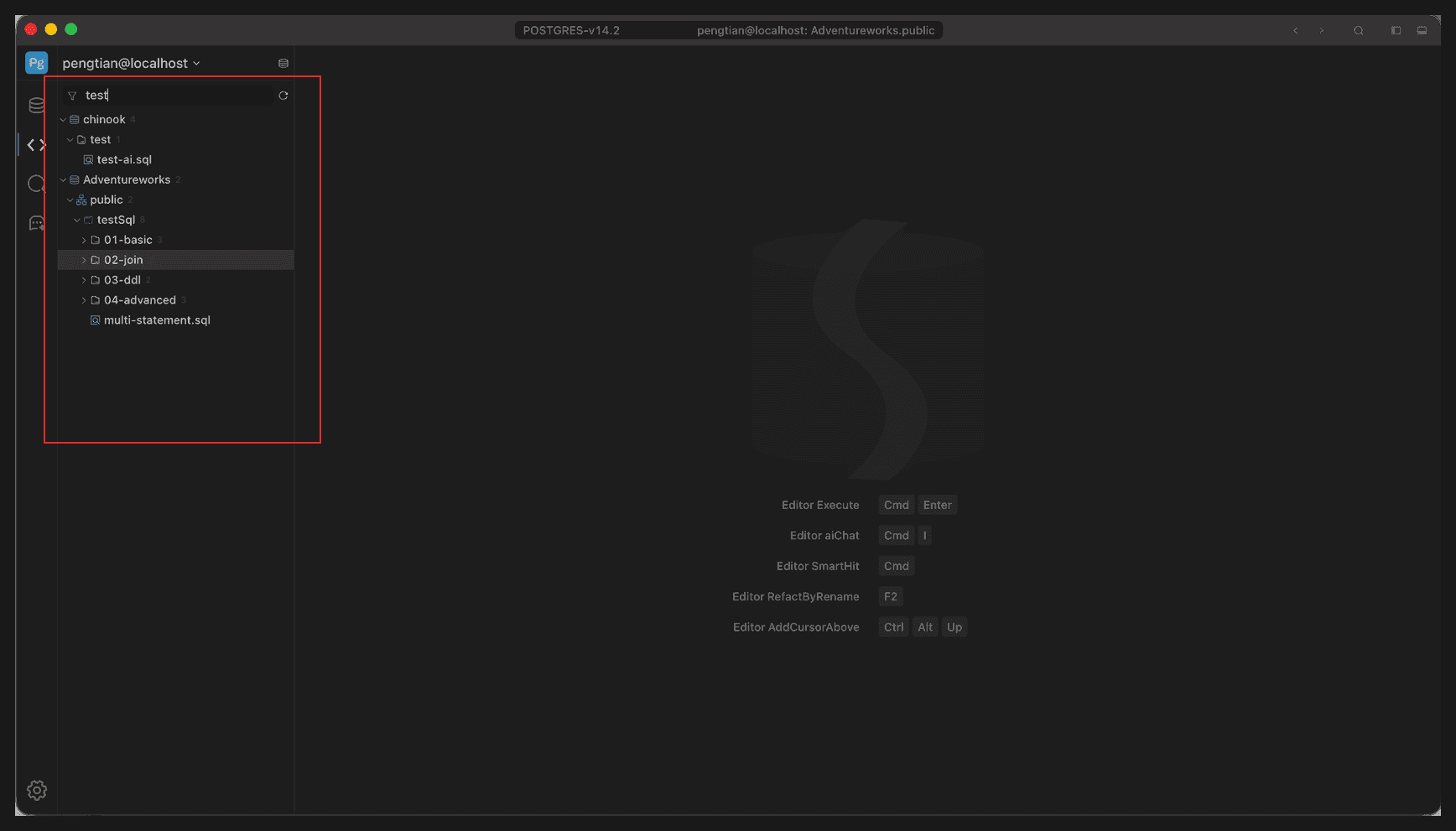
Full-window view; the red box marks the queryNav panel
Four parts, from top to bottom:
| Area | Description |
|---|---|
| Connection row | Current connection name; click to switch workspaces |
| Filter box | Filter the file tree by file name or path |
| File tree | Databases / schemas / folders / SQL files, collapsed by level |
| Tool buttons | Filter, refresh, new, and so on, above the tree |
File tree
- The top level holds the databases and schemas you have added.
- Folders carry a number indicating how many items they contain.
- SQL files are marked with a file icon; click one to open it in the editor.
- Folders can nest further, for example
testSql/01-basic/select-filter.sql.
Filter box
The filter box supports two forms; the placeholder reads % like , /RegEx:
| Form | Example | Description |
|---|---|---|
| Plain filter | test | Matches files and folders whose names contain test |
| LIKE | %test% | Wildcard match, where % matches any characters |
| Regex | /^select-.*\.sql$/ | Treated as a regular expression when it starts with / |
Filtering only affects what is shown and does not change the files themselves.
Create editor file
Right-click the target folder → New Editor File… (Cmd+N, win: Ctrl+N) to create an empty SQL file and open it in the editor. After saving, the file lives in that folder.
Create folder
Right-click → New Folder… to create a subfolder at the current level for grouping a batch of SQL files.
Add folder to workspace
Right-click → Add Folder to Workspace… and pick a directory on disk to attach to the tree. Its subfolders and .sql files appear as well; the panel does not move or copy any files.
Attach schema
A folder can be bound to a schema instead of sitting under a database:
| Command | Action |
|---|---|
| Add Schema | Expand a submenu and choose the schema to attach |
| Select Schemas… | Open the selection dialog to check several schemas at once |
| Display Selected Schemas | Show only the checked schemas and hide the rest |
Display options
| Command | Action |
|---|---|
| Display All Files | Show all files in the directory, not only .sql |
| Allow Hidden Root | Allow hidden directories whose names start with a dot |
Both can be checked; a checkmark appears next to the command once enabled.
Context menu
Right-click a folder to open a menu with:
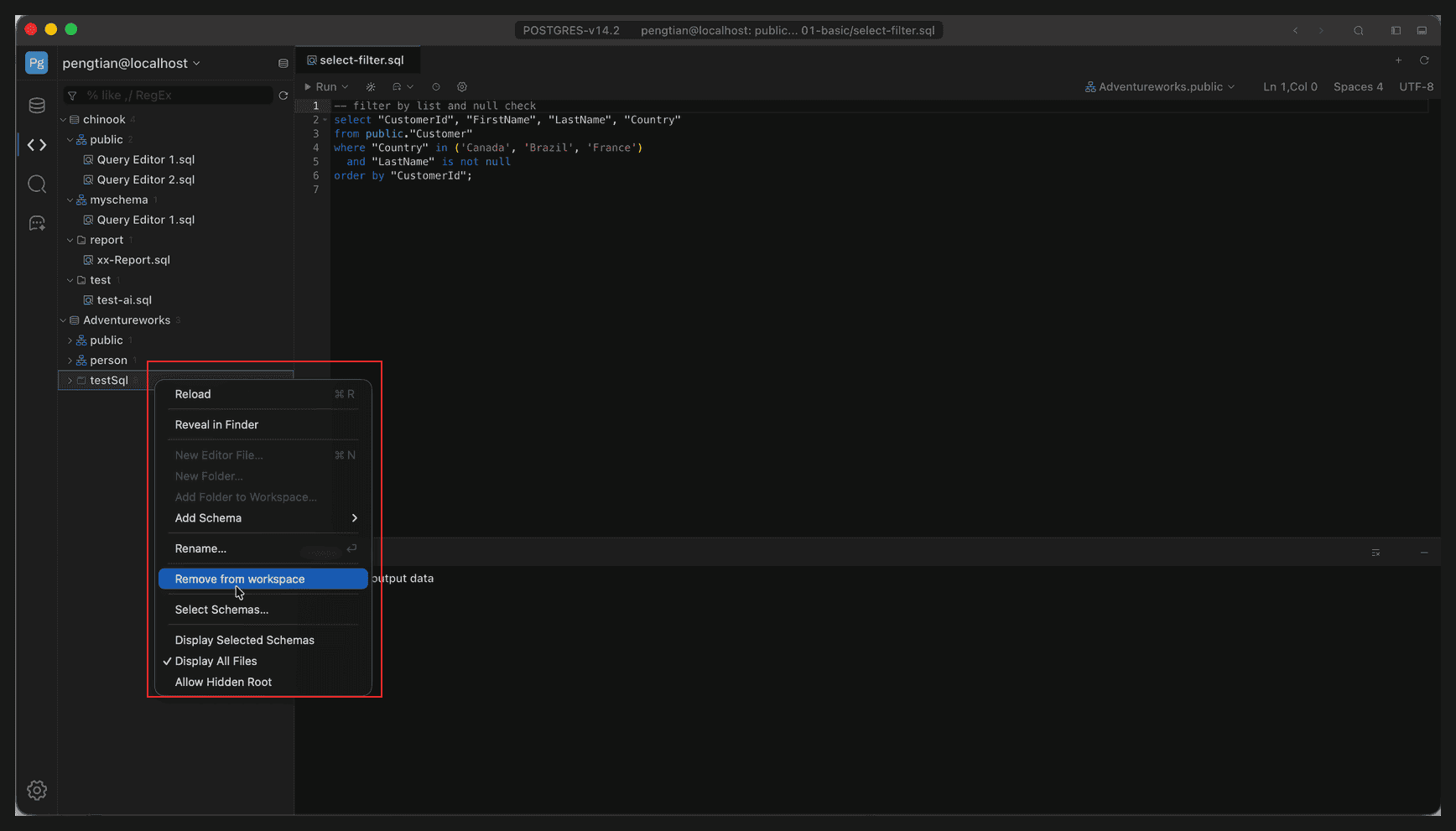
Full-window view; the red box marks the context menu
| Command | Shortcut | Description |
|---|---|---|
| Reload | Cmd+R, win: Ctrl+R | Re-read the file structure on disk |
| Reveal in Finder | — | Show the folder in the file manager |
| New Editor File… | Cmd+N, win: Ctrl+N | Create a SQL file |
| New Folder… | — | Create a subfolder |
| Add Folder to Workspace… | — | Attach a directory from disk |
| Add Schema | — | Bind a schema to the folder |
| Rename… | Enter | Rename the folder |
| Remove from workspace | — | Remove from the panel |
| Select Schemas… | — | Choose which schemas to show |
| Display Selected Schemas | — | Show only the checked schemas |
| Display All Files | — | Show all file types |
| Allow Hidden Root | — | Show hidden directories |
Some commands are grayed out when they do not apply to the current node (for example, creating a folder with an existing name).
Remove from workspace
Remove from workspace only removes the node from the panel; the files and folders on disk stay where they are. Attach them again with Add Folder to Workspace… when needed.
Reload
After an external editor changes files or you add directories on disk, refresh the tree with Reload (Cmd+R, win: Ctrl+R). Reloading only re-reads the structure and does not re-run any SQL.