
AI Chat
What AI Chat does
All AI capabilities are attached to the SQL editor. Open them from the AI dropdown in the toolbar, or press Cmd+I (win: Ctrl+I) in the editor to bring up the inline input box directly.
| Entry | What it does |
|---|---|
| AI Inline Chat | Generate or rewrite SQL at the cursor |
| Explain by AI | Explain the structure and intent of the selected statement |
| Fix by AI | Fix the statement using the error message |
| Optimize by AI | Suggest rewrites and indexes |
| AI Setting | Configure the provider and model |
▶ Tutorial
Inline generate → explain → fix → optimize
AI Inline Chat
Press Cmd+I (win: Ctrl+I) in the editor and an input box appears at the cursor:
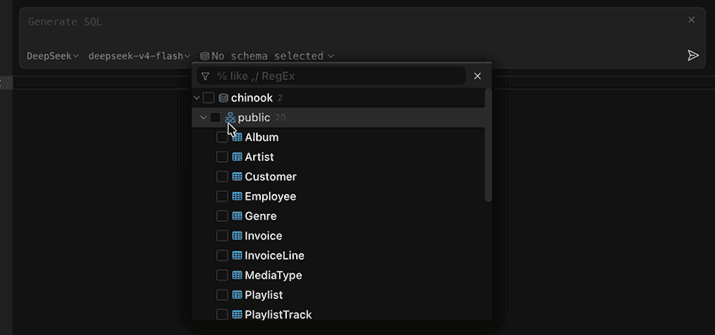
Input box, provider and model, schema selection, send button
- Describe the request in natural language, for example “query the top 10 customers by order amount in each country”.
- The bottom left shows the current provider and model; click it to switch.
- The database icon next to it selects the schema and tables. When nothing is selected it shows No schema selected; the more specific the selection, the closer the generated result is to the actual structure.
- Press send to run, and the result goes straight into the editor;
Esccloses the input box.
Explain by AI
Select a piece of SQL and choose Explain by AI from the AI dropdown in the toolbar. The response covers:
- what the statement does overall;
- the role of each clause and CTE;
- how the tables are joined;
- constructs that may affect results or performance.
Useful for quickly understanding a complex query someone else wrote.
Fix by AI
When a statement fails, a Fix button appears on the right side of the error bar. Click it and the AI rewrites the statement using the error message:

invalid regular expression: brackets [] not balanced and the Fix button
The fix replaces the statement in the editor directly, for example converting an unescaped regex to its escaped form:
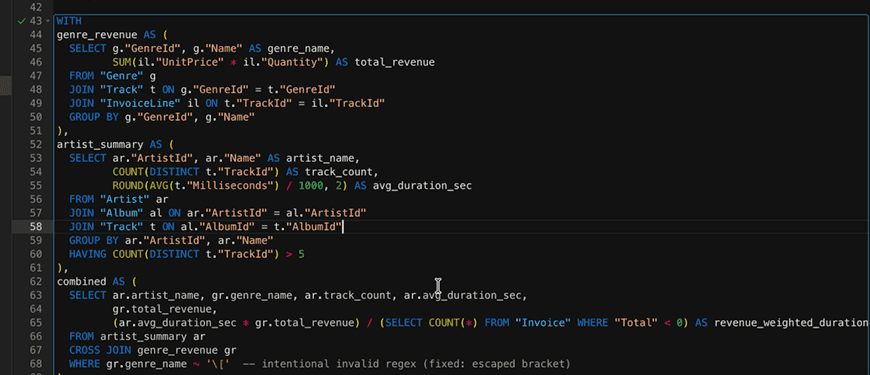
The fixed statement runs normally
You can also choose Fix by AI from the AI dropdown in the toolbar; the effect is the same.
Optimize by AI
Select a statement and choose Optimize by AI. The response includes:
- points that can be optimized, such as redundant subqueries or missing filter conditions;
- the rewritten statement;
- indexes that should be added.
Review the changes before applying them, especially index suggestions, which need to be weighed against write frequency.
AI Setting
Open it from the last item in the AI dropdown, or from Preferences → Ai Settings:
- add a provider and API key;
- choose the default model;
- when no provider is configured, the inline input box shows No AI provider available.