
Search in Database
The search icon in the left sidebar opens the SEARCH panel. Enter a value and it looks through every table in the current schema one by one, listing the number of hits per table.
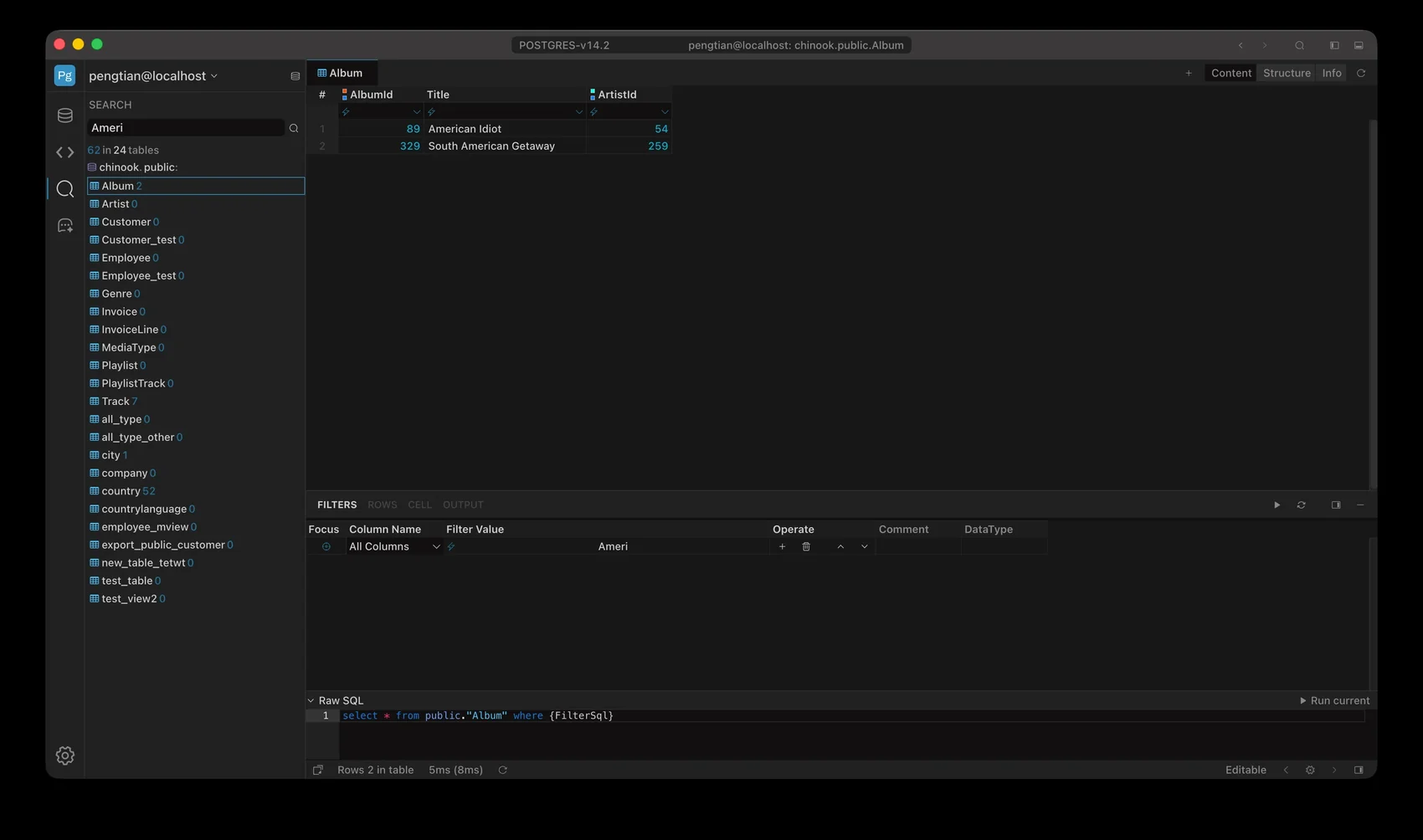
Searching Ameri: 62 rows hit, 24 tables scanned; click Album to open Content filtered by the keyword
Open
- The search icon in the fixed left column (tooltip:
Batch search table data in schema or database). - The search box sits at the top of the panel, with the placeholder
search in database.
Scope
Confirm the current schema before searching. The search covers only the selected database / schema. If unsure, open any table first (the title bar shows
database.schema) and then come back to search; otherwise it falls back to the default database and schema and you miss tables you thought were in range.
- The search scope is the current schema; when the database level is enabled, the results area shows
database.schema. - Only text columns (strings, text) are searched; numeric, date, and binary columns are skipped.
- A separate query runs for each table, so large databases take a while.
Matching rules
| Input | Actual match |
|---|---|
foo | %foo% (contains) |
%foo | %foo (ends with foo) |
foo% | foo% (starts with foo) |
%foo% | %foo% (same as omitting %) |
Within one table, multiple text columns are joined with or: a hit in any column counts as a hit for the table.
Progress
While searching, the panel shows:
searchingplus progress astotal-current index- The name of the table currently being queried
- The icon to the right of the input becomes a stop button; click it to interrupt
After an interrupt, tables that already finished remain in the results.
Results
- The header reads
hits in tables scanned, for example62 in 24 tables: 62 rows hit across 24 tables scanned. - The list includes every table scanned with its hit count, including tables with
0. - Tables whose query failed are marked in red; hover to see the reason.
- Clicking a row opens the table’s Content view with
All Columns = keywordadded automatically in the FILTERS panel, so you see the matching records directly.
Notes
- Results reflect the data at the time of execution and do not refresh automatically.
- The search runs table by table, so with many tables it helps to use a more specific keyword first, or to narrow the schema range first.