
Open Everything
What Open Everything does
Open Everything is a global input box: without opening a menu or the object tree first, type a name and jump to a table, SQL file, or command. It is the entry point for “where to go”, not for changing data.
▶ Tutorial
Name search → / files → > commands
Open the palette
Press Cmd+Shift+P (win: Ctrl+Shift+P). The input placeholder explains the three modes:
Search all schemas by name, > for cmd, / for query files| Input | Search scope |
|---|---|
| Type a name directly | Objects (tables and so on) in the schemas of the current connection |
Starts with / | Query files (.sql) |
Starts with > | Application commands |
Search objects
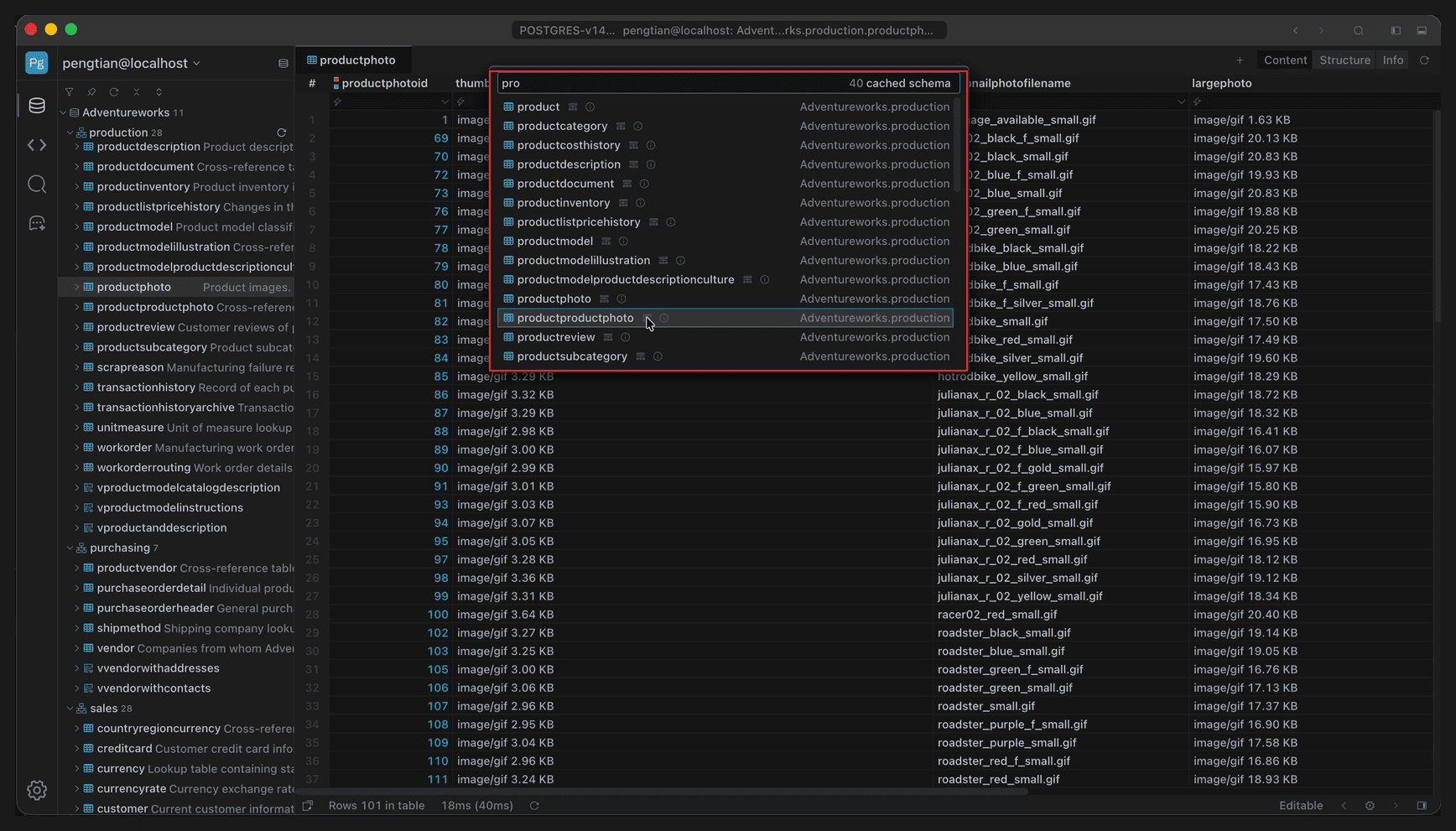
Full window view; the red box marks the search results
- Typing a keyword starts filtering; for example,
prolistsproduct,productcategory,productlistpricehistory, and so on. - Each result shows the object name, with its full location as
schema.tableNameon the right. - The top right shows
40 cached schema, the number of schemas currently included in the search.
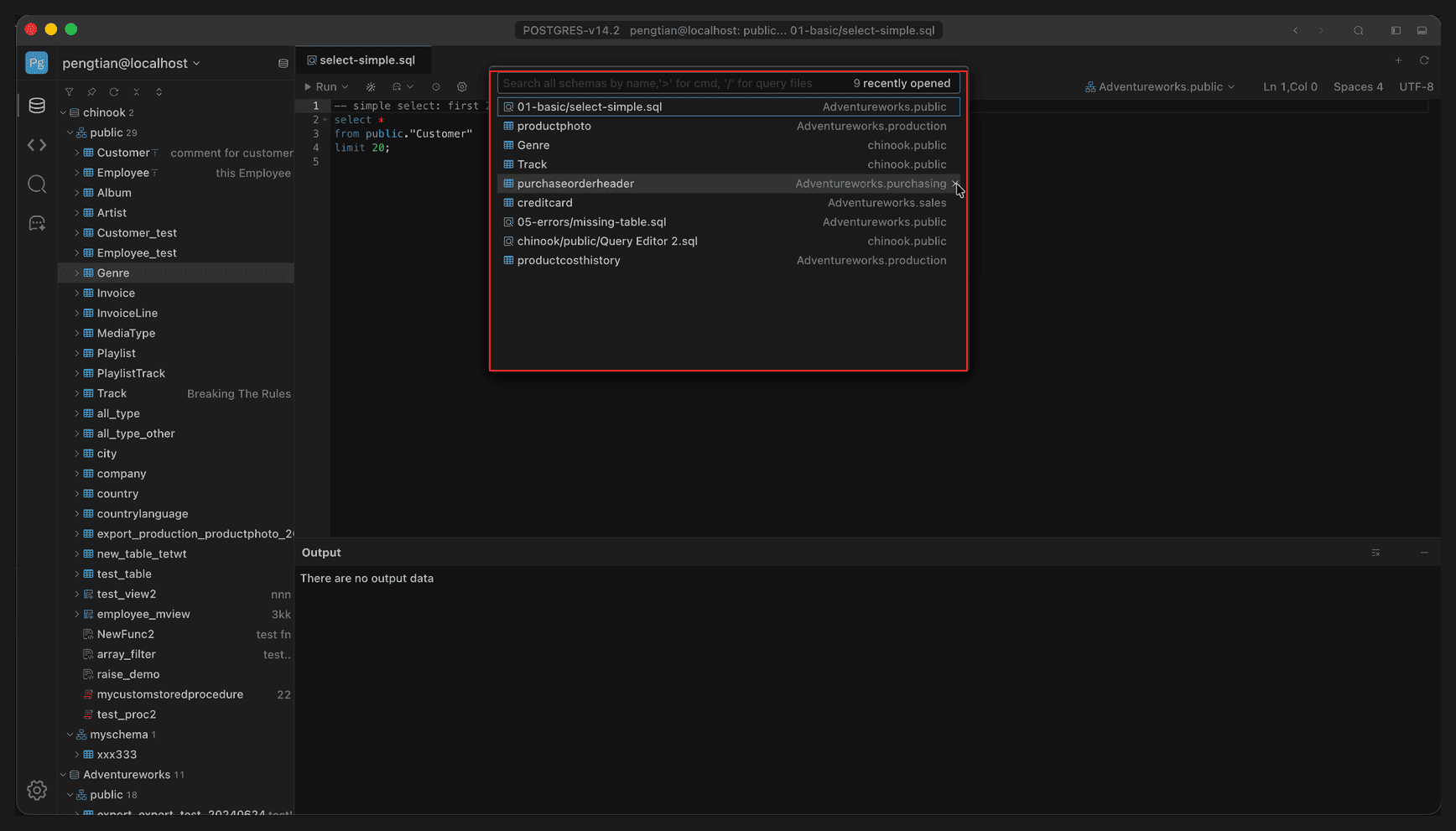
Full window view; the red box marks the recent items shown by default on open
With no input, the list shows recently opened content — files and tables mixed together, ordered by use — and the count appears in the top right.
Query files
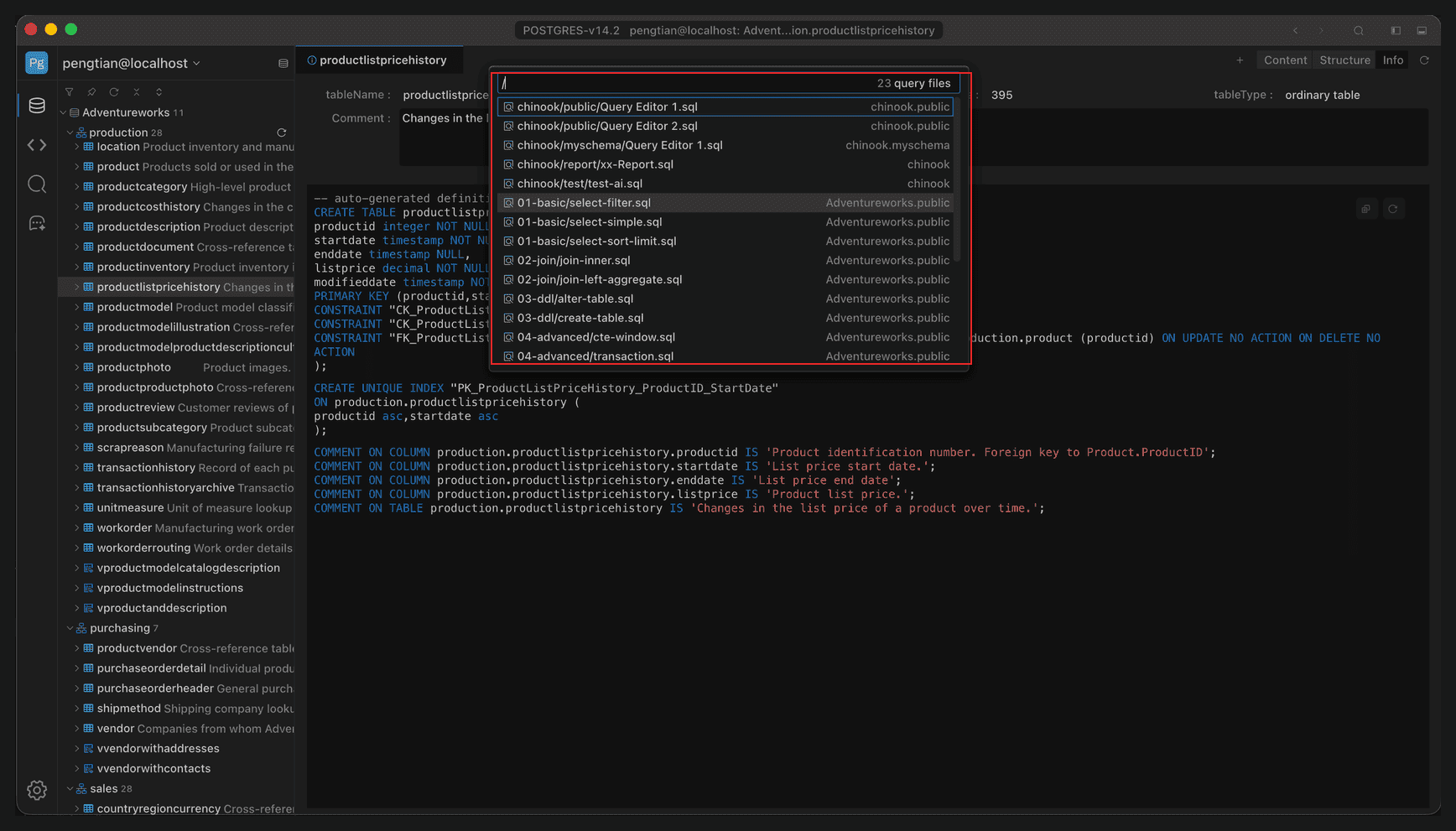
Full window view; the red box marks the file list in / mode
After typing /, only Query files are searched:
- The right side shows
23 query files, the number of searchable SQL files in the current workspace. - Each row is a file path, with the schema the file belongs to on the right.
- Selecting one opens it in the editor, ready to execute.
Commands
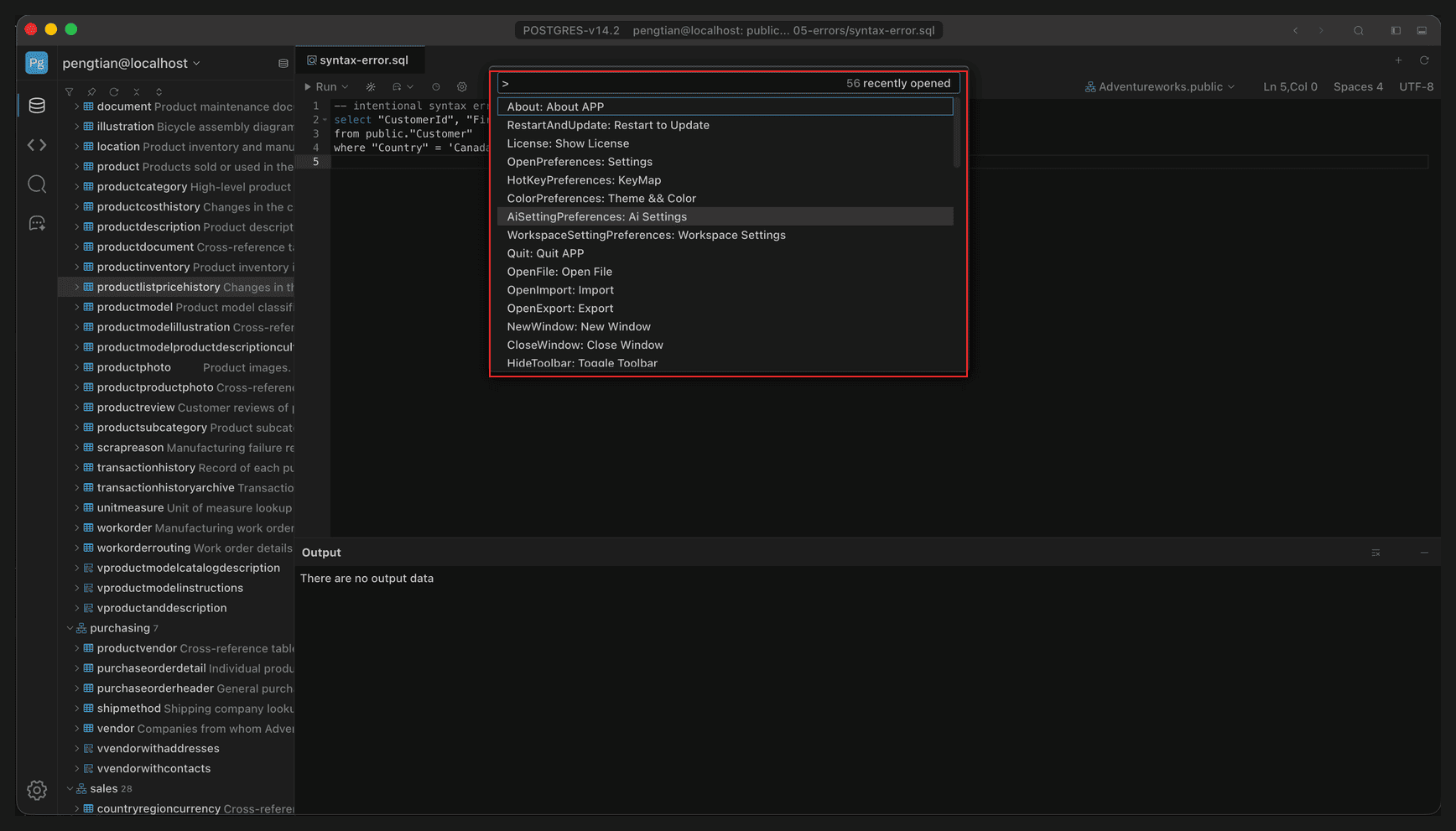
Full window view; the red box marks the command list in > mode
After typing >, application commands are listed in the format command name: display name, for example:
| Command | Opens |
|---|---|
OpenPreferences: Settings | Settings |
HotKeyPreferences: KeyMap | Shortcuts |
ColorPreferences: Theme & Color | Theme and color |
AISettingPreferences: AI Settings | AI settings |
WorkspaceSettingPreferences: Workspace Settings | Workspace settings |
OpenExport: Export | Export |
OpenFile: Open File | Open file |
Use the arrow keys to move the selection and press Enter to run it.
Open a result
| Result type | After opening |
|---|---|
| Table | Opens a tab for the table in the Info view, showing tableName, schema, row count, table type, and DDL |
| SQL file | Opens in the Query Editor and becomes the active tab |
| Command | Runs the corresponding action directly, such as opening the settings page or the export window |
When you open a table it lands on Info rather than Content by default, because search is usually about confirming “is this the table I want”.