
Navigation
What Navigation does
Navigation is the object panel on the left side of the window: it lists the databases, schemas, tables, views, functions, and stored procedures of the current connection in a hierarchy, and from here you open tables, start queries, and switch connections. It is the main entry point for browsing a database, handling navigation only and never modifying data.
Which panel is shown depends on the icon selected in the Nav Bar; clicking the same icon again collapses the panel.
▶ Tutorial: Navigation
Switch connection → expand objects → context menu
Panel layout
The panel has four parts, from top to bottom:
- Connection row: the current connection name; click to expand the connection list.
- Icon row: filter panel, pinned panel, refresh, clear filter, expand/collapse.
- Database / schema row: choose which databases and schemas to show.
- Object tree: database → schema → table / view / materialized view / function / stored procedure.
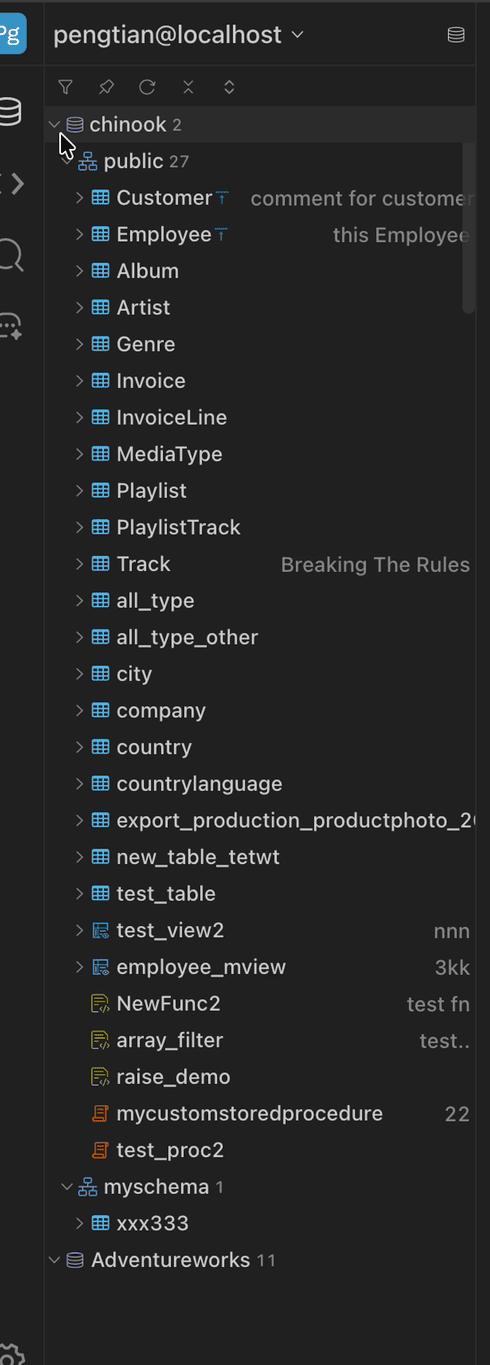
Top to bottom: connection name, icon row, database and schema selection, object tree
Connection row
Click the connection name to expand the connection list, which has two groups:
- Recent: recently used connections.
- Saved: all saved connections, grouped by database type.
There is a search box at the top; with many connections, type a name to filter. Selecting a connection switches to it, and open tabs stay open.
Filter box
The filter box at the top of the tree filters objects by name and supports two forms:
% like: fuzzy match, such as%order%/RegEx: regular expression match, such as/^tbl_/
The × on the right clears the conditions.
Switch workspace & datasource
Below is the full process of switching workspaces from the top of Navigation: searching for a connection, choosing a target, and how the interface changes after switching.
▶ Tutorial: Switch workspace
Search → switch → state preserved
Workspace & DataSource
| Concept | What it is |
|---|---|
| DataSource | A saved connection configuration: name, type, host, port, account, and SSH / SSL parameters |
| Workspace | The working environment for that connection: open tabs, selected databases and schemas, tree expansion and filters, and query files |
A DataSource maps to one Workspace, with the same name as the DataSource. Opening a connection loads the workspace’s own state; after closing the connection, the state stays on this machine.
So switching Workspace and switching DataSource are the same thing: a different connection also means a different set of tabs, database selections, and query files.
The connection name at the top of Navigation is the switching entry point. Open the dropdown to list the workspaces you can switch to; select one to switch.
Saved
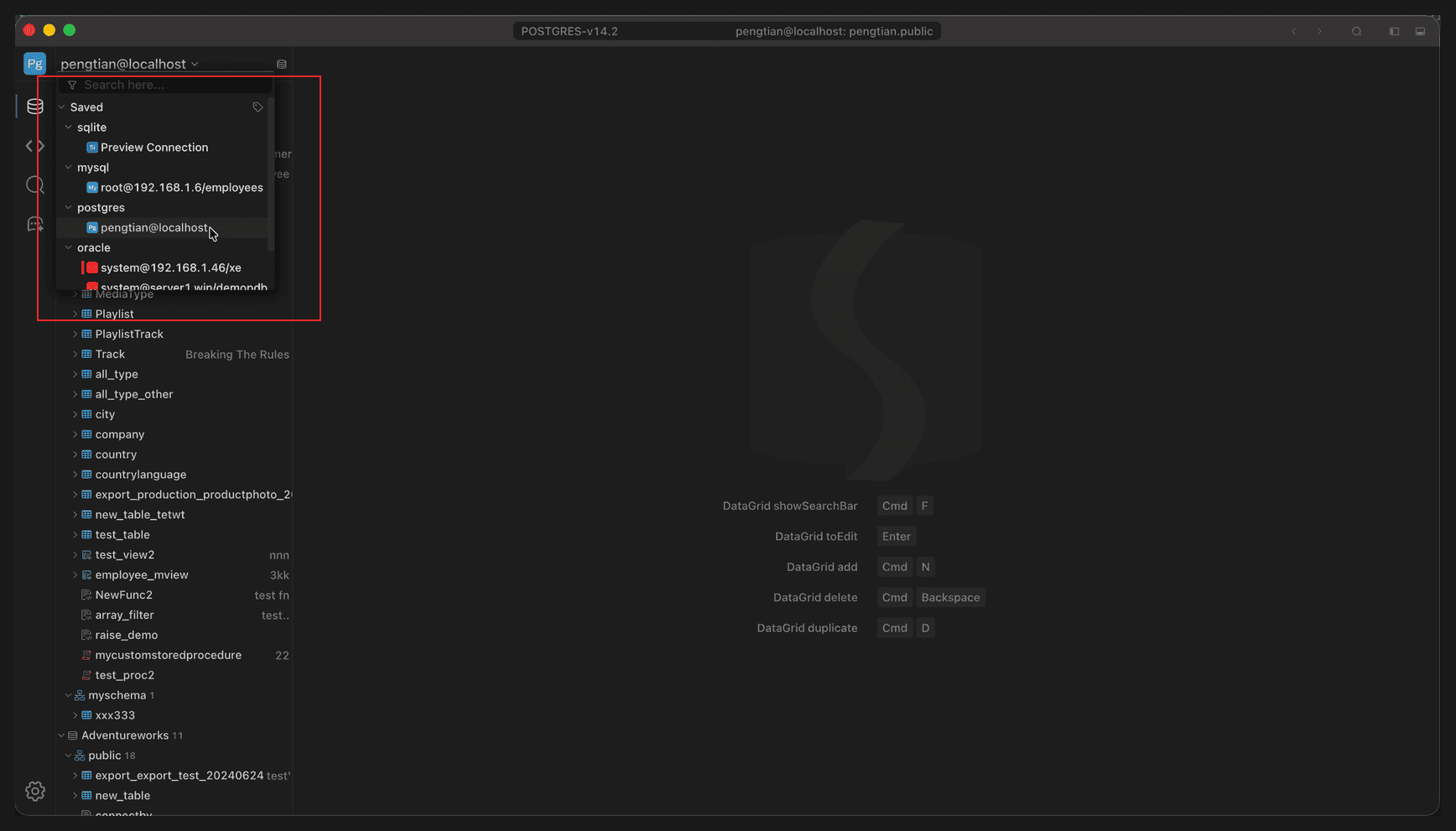
Full-window view; the red box marks the connection-name dropdown
The dropdown has only the Saved group, collapsed by database type:
| Group | Contents |
|---|---|
| sqlite / mysql / postgres / oracle … | Each type lists its connections in saved order |
The current workspace is highlighted in the dropdown. With many connections, narrow the range with the search box first, then expand a group.
Search connections
Type a keyword in Search here… at the top of the dropdown to filter the list by connection name; the list narrows as you type and expands back to the full list when cleared.
Switch
Click a connection in the dropdown to switch: Navigation shows that workspace’s tree, and the tab bar shows that workspace’s own tabs.
Switching preserves working state; each workspace remembers its own:
- open tabs and the active tab;
- selected databases and schemas;
- tree expansion state and filter conditions.
When you switch away, this state is written back to this machine and restored when you return.
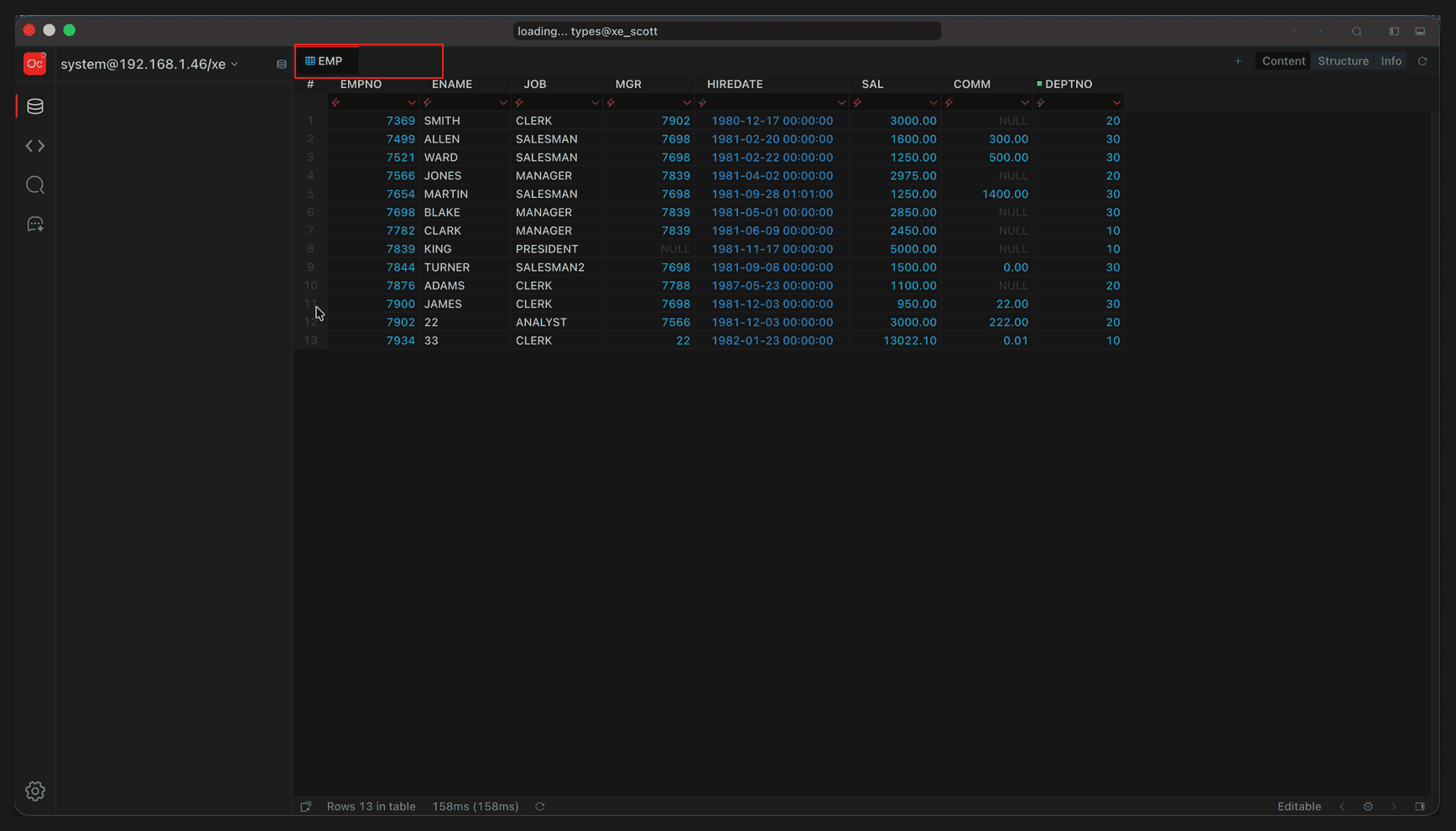
Full-window view; the red box marks the Oracle connection’s own tab (the EMP table) after switching
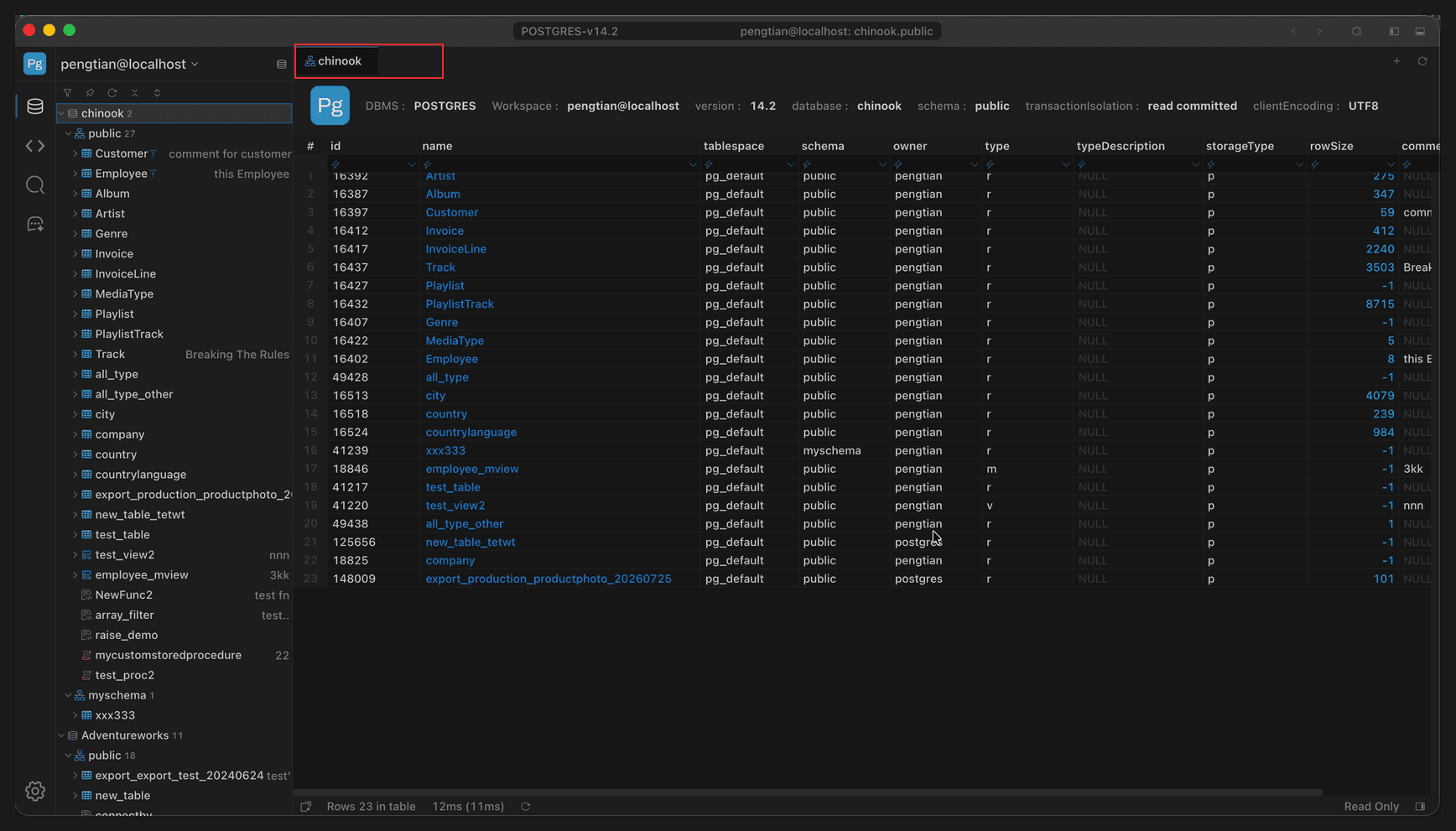
Full-window view; the red box marks the chinook tab that is still open in that workspace after switching back
After switching
After switching, Navigation loads according to the target workspace and the data area switches to that connection’s tabs.
Switching only changes the current workspace; the previous workspace’s files and settings remain on this machine and you can switch back at any time. The connection you switch to keeps its previously selected databases and schemas and does not prompt automatically.
Select Database & Schema
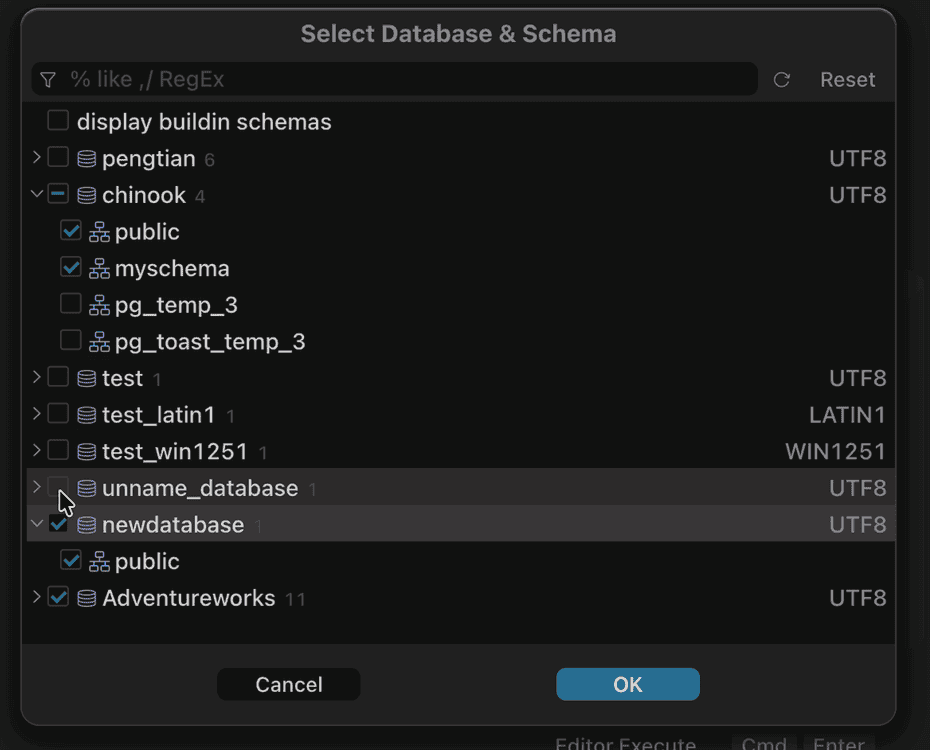
Check the boxes and click OK; the selected databases and schemas appear in the tree together
This controls which databases and schemas the tree shows at once. It selects a display scope, not a new current database: check several and they appear side by side in the tree.
Two ways in:
- the database icon at the right of the connection row (hover to see which databases and schemas are selected);
- the tree’s context menu item Select Schemas….
The dialog opens with the currently selected databases and schemas already checked; add or remove from that default and click OK to apply.
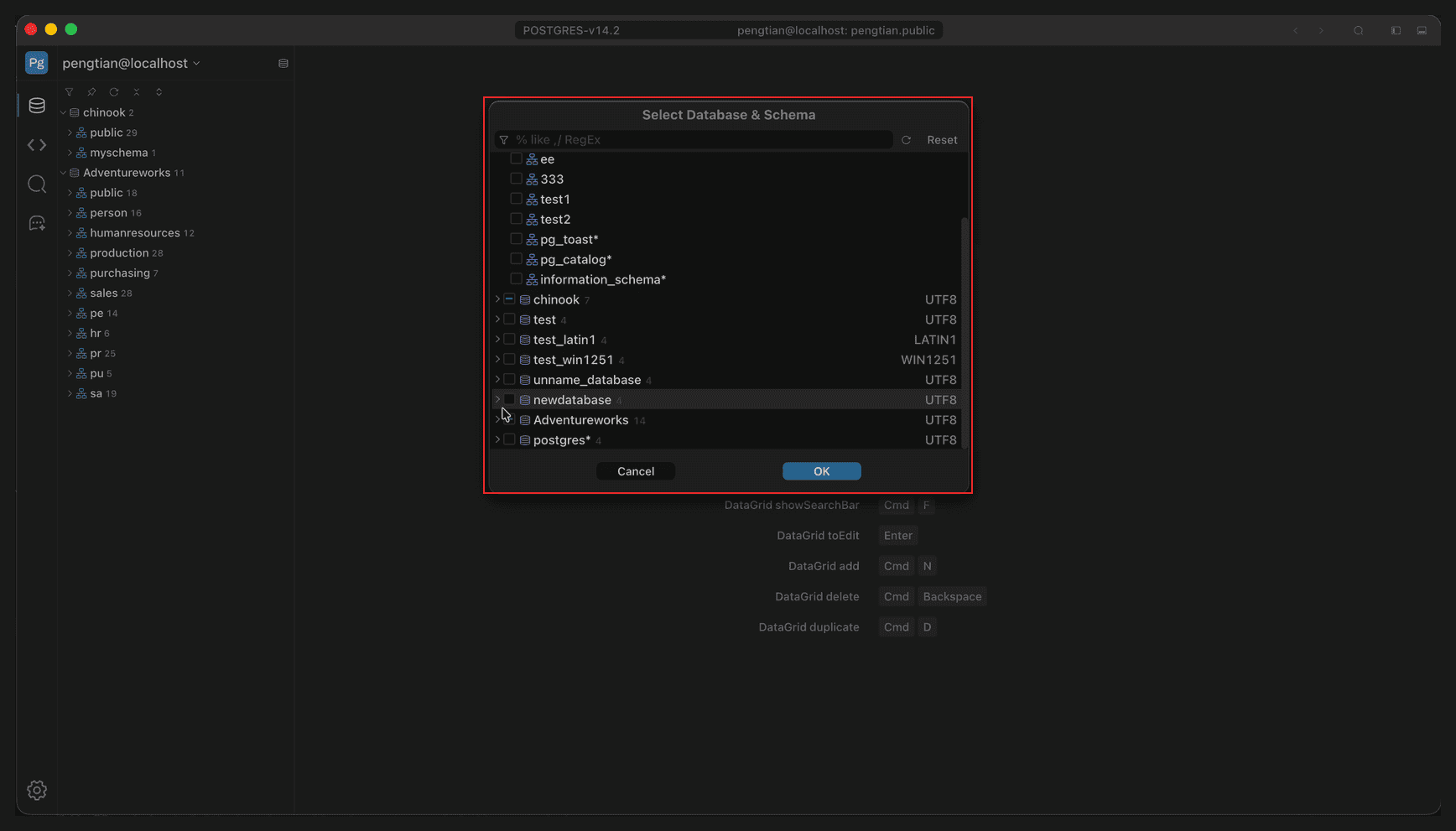
Full-window view; the red box marks the dialog
- Each database has a checkbox and several can be selected; expand one to check individual schemas.
- The character set is shown to the right of each schema to confirm the encoding.
- System schemas (
pg_temp_*,pg_toast_*) are hidden by default; check display buildin schemas to show them. - The filter at the top supports
% likeand/RegEx, and Reset clears it; use the refresh button after changing permissions or creating a database. - OK applies and Cancel discards.
Toolbar
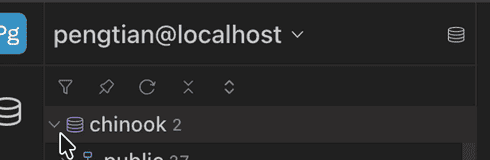
Five buttons in the icon row: filter panel, pinned panel, refresh, clear filter, expand/collapse
| Icon | Action |
|---|---|
| Funnel | Show/hide the filter box |
| Pin | Show/hide the pinned panel |
| Circular arrow | Reload the objects of the current connection (Cmd+R, win: Ctrl+R) |
| × | Clear the filter conditions |
| ⌃⌄ | Collapse all / expand all |
Use Expand All with care on large databases: expanding too many nodes at once triggers a large number of metadata queries.
Object menu
Right-click any node in the tree (database, schema, table, view, function, and so on) to open the same menu; items are enabled or hidden depending on the node type.
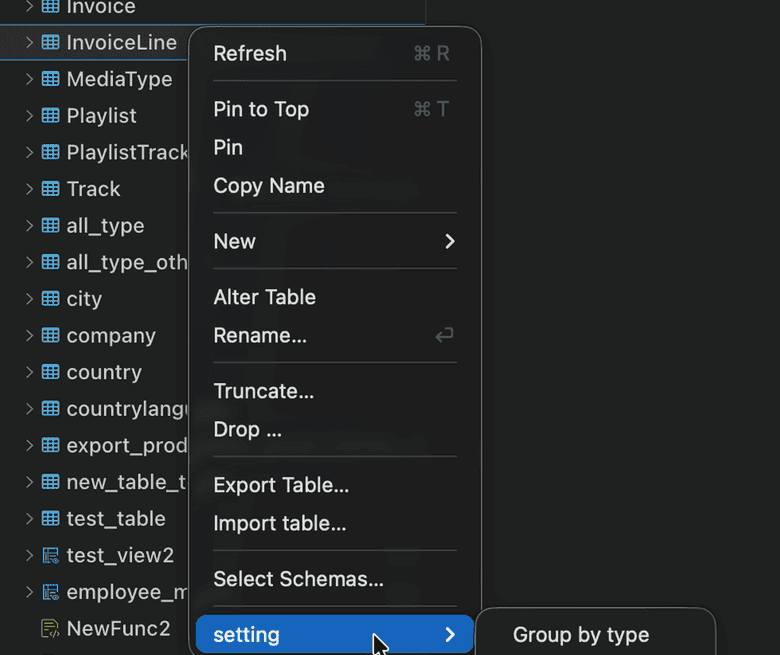
Context menu on a table node; the setting submenu is at the bottom
| Menu item | Description |
|---|---|
| Refresh | Refresh the current node (Cmd+R, win: Ctrl+R) |
| Pin to Top | Pin to the top of the list (Cmd+T, win: Ctrl+T) |
| Pin | Add to the pinned panel to keep several frequently used objects in one place |
| Copy Name | Copy the object name to avoid retyping it in SQL |
| New ▸ | Create a Table / Schema / Query Editor / Folder |
| Alter Table | Open the structure view to change the table definition |
| Rename… | Rename the object; press Enter to confirm |
| Truncate… | Clear the table data, keeping the structure |
| Drop… | Drop the object |
| Export Table… | Export the table structure or data |
| Import table… | Import a file into the table |
| Select Schemas… | Adjust which databases and schemas the tree shows |
| setting ▸ | Show related settings; see the next section |
Truncate and Drop cannot be undone; confirm the environment of the current connection before running them.
Pin to Top only changes the order in the tree; Pin moves the object into a separate pinned area.
Settings
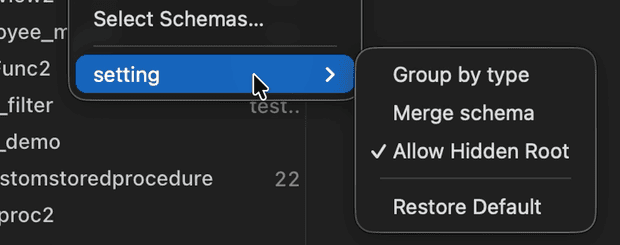
Group by type, Merge schema, Allow Hidden Root, Restore Default
| Setting | Effect |
|---|---|
| Group by type | Group by Tables / Views / Materialized Views / Functions / Procedures; when off, objects are listed flat |
| Merge schema | Merge like nodes across schemas to reduce nesting |
| Allow Hidden Root | Allow hiding the root node and starting directly at the database or schema |
| Restore Default | Restore the default display settings without affecting database contents |