
Connections
A connection is built from one saved DataSource. The editor is split into General, Options, SSH, SSL, Schemas, and Output tabs.
▶ Tutorial
DataSources list → group and filter by Tag → open a connection → test and save
DataSources panel
- Filter DataSources at the top filters by name.
- Connections are grouped by Tag (
DefaultandDevin the screenshot). - Each card shows an icon, name, address / database / user; the small user icon in the corner is the login user.
- Bottom buttons: New DataSource creates one, Open in New Window opens it in a separate window, Cancel closes the panel, Connect & Switch connects and switches to it.
- Right-clicking a card opens refresh, connect, edit, duplicate, delete, plus group and tag actions; the full list is under DataSource menu below.
DataSource menu
Right-click any connection card:
| Command | What it does |
|---|---|
| Refresh | Re-read the connection state |
| Connect | Connect immediately |
| Open in new Window | Open in a separate window |
| New DataSource | Create another connection |
| Edit DataSource… | Open the connection editor |
| Duplicate | Copy the connection, useful for another environment |
| Delete | Remove the connection |
| Move Group ▸ | Move it to another group |
| Set Tag ▸ | Change its Tag |
| Import DataSources ▸ | Import from another client |
| Workspace Path… | View or change this connection’s workspace path |
Dialog overview
| Tab | Purpose |
|---|---|
| General | Host, port, user, password, database |
| Options | Charset, time zone, keep-alive, timeout, startup script |
| SSH | Connect to a private database through a jump host |
| SSL | Certificates and verification |
| Schemas | Choose databases / schemas to load after connecting |
| Output | SSH only: the tunnel log, used to see which step failed |
Three fields sit above the tabs: Name, Tag, and Theme (the label color).
SQLite connections only have General / Options / Schemas; there is no SSH or SSL.
General
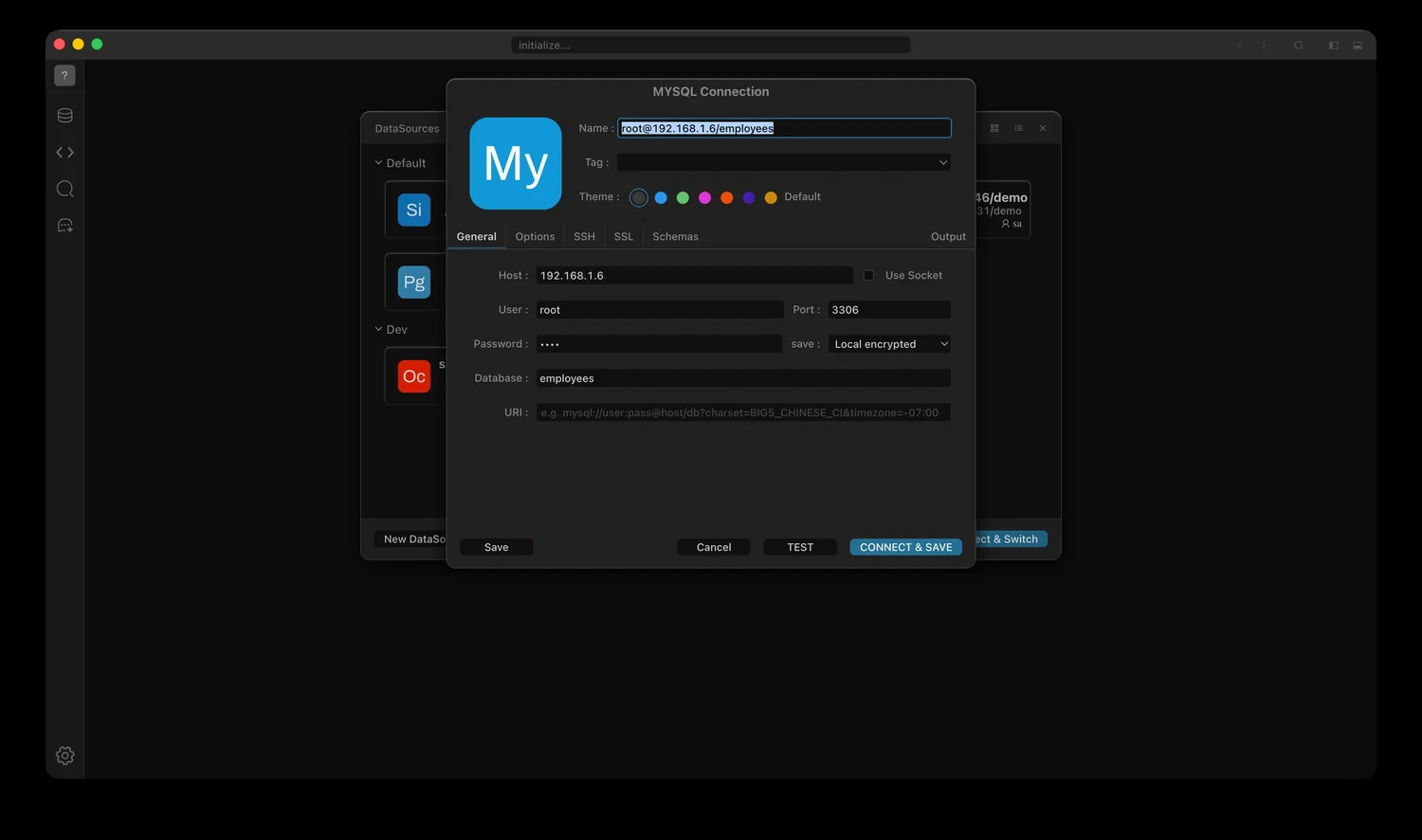
General tab: name, Tag and Theme, then Host / User / Port / Password / Database
| Field | Notes |
|---|---|
| Host | Host name or IP |
| Port | Port, with a per-database default |
| User / Password | Login credentials; save next to the password controls whether it is stored |
| Database | Default database or schema |
Per-database differences:
- MySQL / MariaDB: tick
Use Socketto go through a local socket and fill in the socket path. - PostgreSQL:
Databaseis used as the default schema. - Oracle: adds
Role,SID, andURL (Thin). - SQL Server:
Auth Typeswitches between SQL login and Windows authentication; Windows authentication takes aDomain. - SQLite: set
DataBase Pathto a local file; no Host or Port needed.
Options
Common options:
| Option | Notes |
|---|---|
| Charset | Connection character set |
| Time zone | MySQL only; local, Z, or +HH:MM |
| Enable Keep-alive | Keep long-lived connections from idling out |
| Connect Timeout | Connection timeout in ms |
| Startup Script | SQL that runs automatically after connecting |
Additional options by database:
| Database | Extra options |
|---|---|
| SQL Server | Trust Server Certificate, Encrypt, Tds Version, Trusted Connection |
| Oracle | Local, Parameters (e.g. sslServerDNMatch=true,retryCount=3) |
| SQLite | Runtime Args, Charset |
SSL
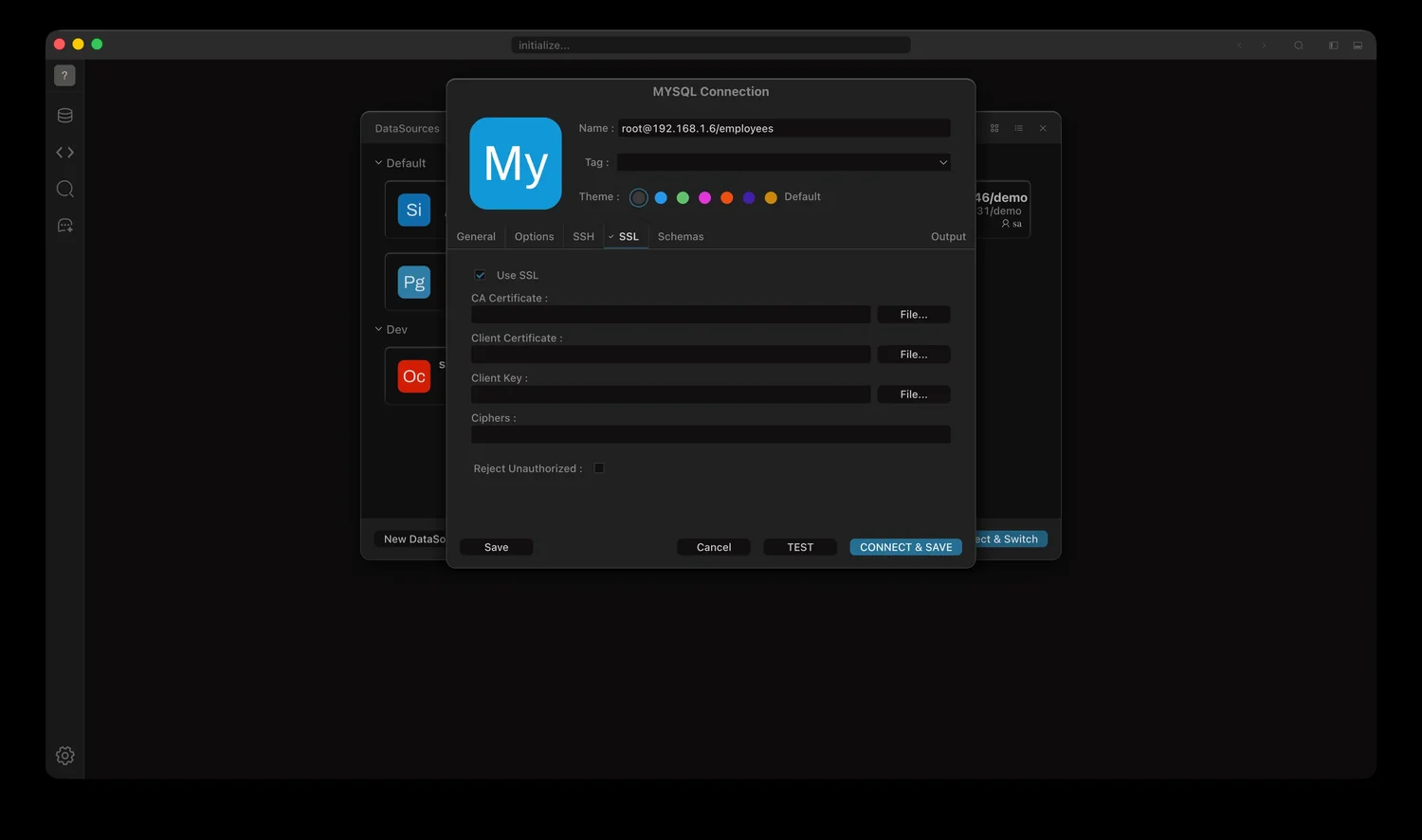
SSL tab: certificate files and Ciphers; the greyed fields need Use SSL first
Tick Use SSL before the fields below become editable:
| Field | Notes |
|---|---|
| CA Certificate | CA certificate file |
| Client Certificate | Client certificate |
| Client Key | Client private key |
| Ciphers | Cipher suites to allow or exclude |
| Reject Unauthorized | Reject untrusted certificates; turn it off for self-signed certificates |
SQL Server, Oracle, and SQLite do not offer an SSL tab.
SSH
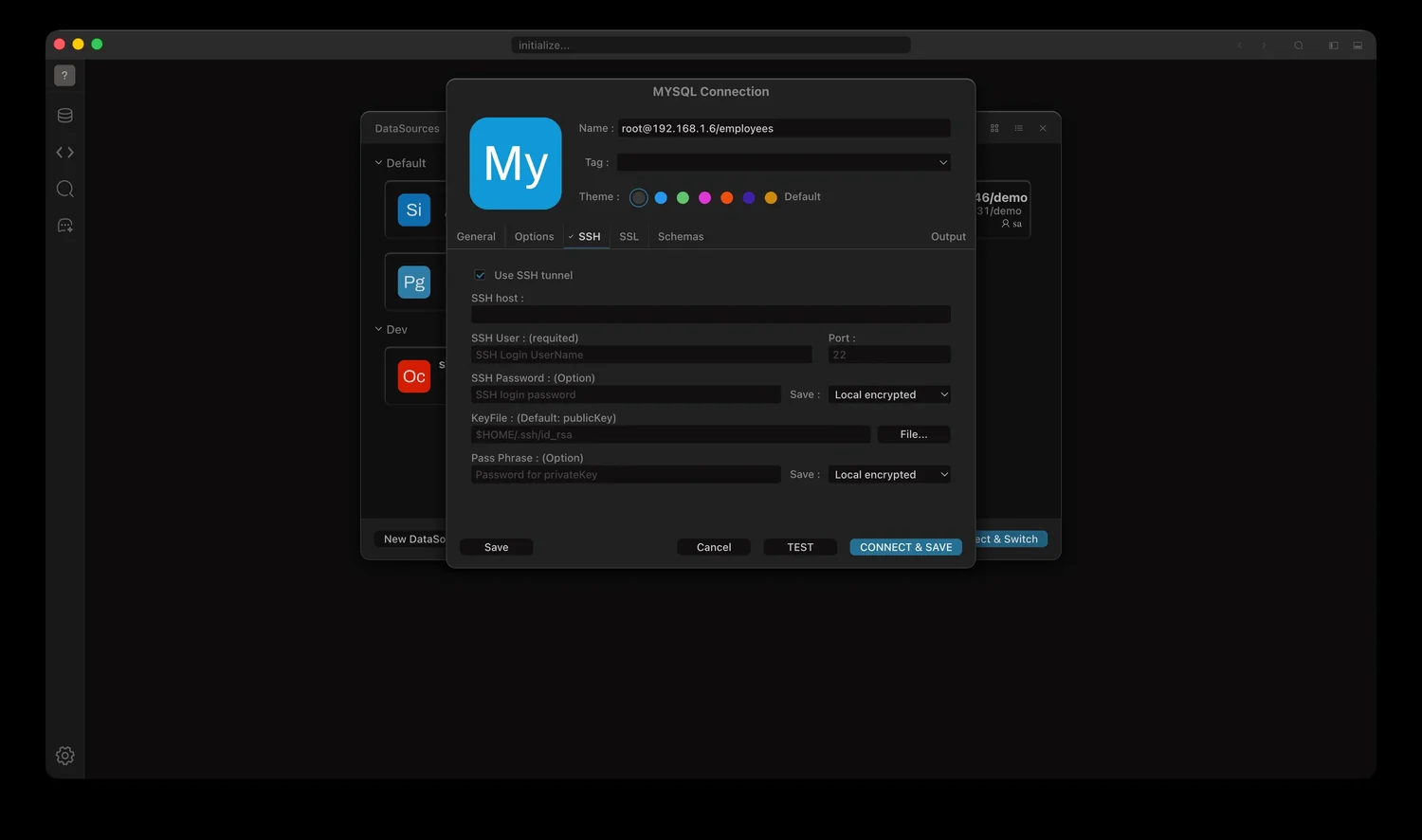
SSH tab: jump host address, user, port, private key, and passphrase
▶ Tutorial: SSH
Configure the jump host → handshake log → authentication failure → unreachable target → a working connection
With Use SSH tunnel enabled, the connection goes through an SSH jump host first:
| Field | Notes |
|---|---|
| SSH host | Jump host address |
| SSH User | Login user, required |
| Port | SSH port, 22 by default |
| SSH Password | For password login; can be saved |
| KeyFile | Private key file, $HOME/.ssh/id_rsa by default |
| Pass Phrase | Passphrase for the key; can be saved |
Once enabled, a tunnel banner appears above the General tab so you can confirm which database is the final target. SQLite does not support SSH.
Output
The Output tab currently serves SSH connections only. When you press TEST or CONNECT & SAVE, it logs each phase so you can see which step failed:
| Log line | Meaning |
|---|---|
try ssh connect ssh user@host:port (Auth Type…) | Connecting to the jump host; also lists password vs. key |
SSH Connect success,try to create Local port | Jump host login succeeded; creating the local port |
create local socket for ssh / Local socket listen: … | The local forwarding port is listening |
Local socket connected. Forwarding traffic via the established SSH tunnel. | Database traffic is flowing through the tunnel |
Errors starting with SSH: … | Tunnel-level errors (auth failure, port in use, and so on) |
Common failure points:
- When both password and private key are empty, the log shows
Invalid SSH parameters: both password and private key are empty. - If the local port is taken, it retries with another port up to 5 times; look for
Port used,try N time,new port: …. - If jump host authentication fails, the log stops after
try ssh connectand never reachesSSH Connect success.
On success, a green banner at the end of the log lists:
version: 8.0.28  transactionIsolation: REPEATABLE-READ  readOnly: false
dbName: open_demo  schema: public  clientEncoding: utf8mb4
Error scenarios
1. Jump host authentication fails
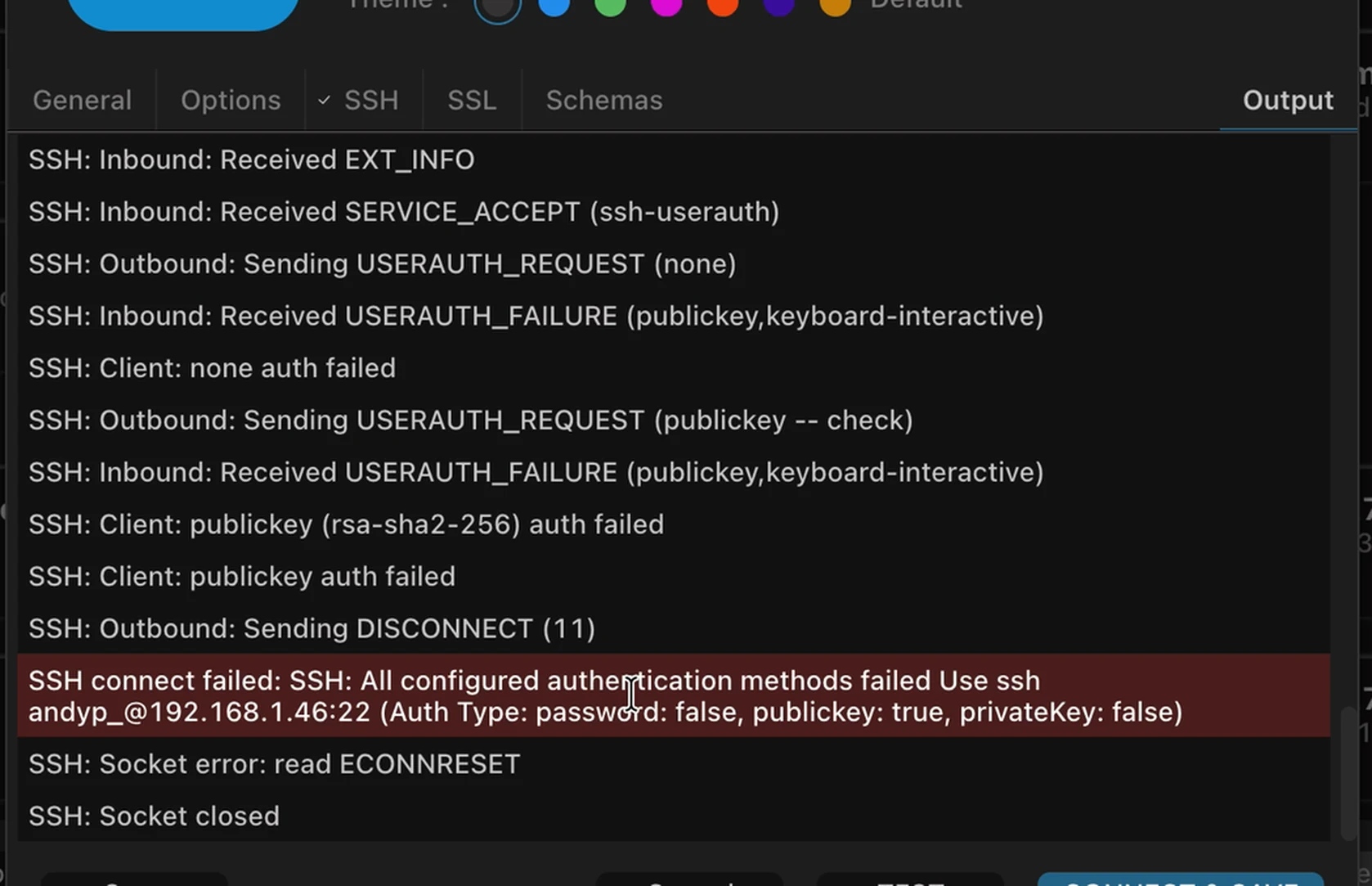
USERAUTH_FAILURE repeats, ending with a red All configured authentication methods failed
- Key lines:
Received USERAUTH_FAILURE (publickey,keyboard-interactive),Client: publickey (rsa-sha2-256) auth failed. - The red message includes the account and methods attempted, for example
Use ssh andy@192.168.1.46:22 (Auth Type: password: false, publickey: true, privateKey: false). - Fix: check SSH User, the private key path, and the passphrase; at least one of password or key must work.
2. Tunnel is up but the database is unreachable
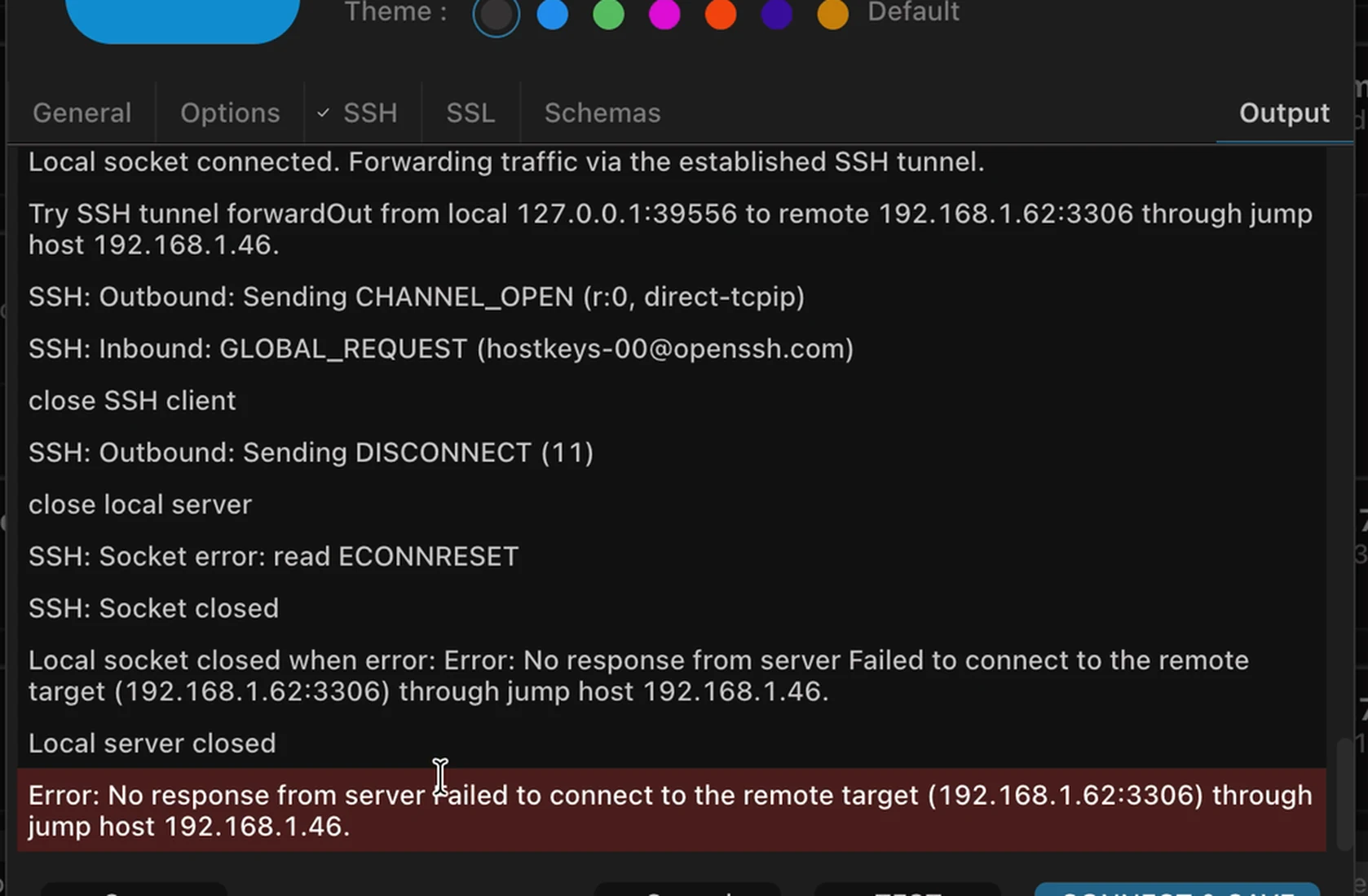
CHANNEL_OPEN followed by ECONNRESET, with a red unreachable-target message
- Key lines:
Sending CHANNEL_OPEN (r:0, direct-tcpip),SSH: Socket error: read ECONNRESET. - Red message:
No response from server. Failed to connect to the remote target (192.168.1.62:3306) through jump host 192.168.1.46. - Meaning: the jump host is reachable, but it cannot reach the Host / Port entered under
General. - Fix: check the Host / Port values, or confirm the database port is listening and not blocked by a firewall.
Both failures end with Local socket closed when error / Local server closed, confirming the local forwarding port was released.
Schemas
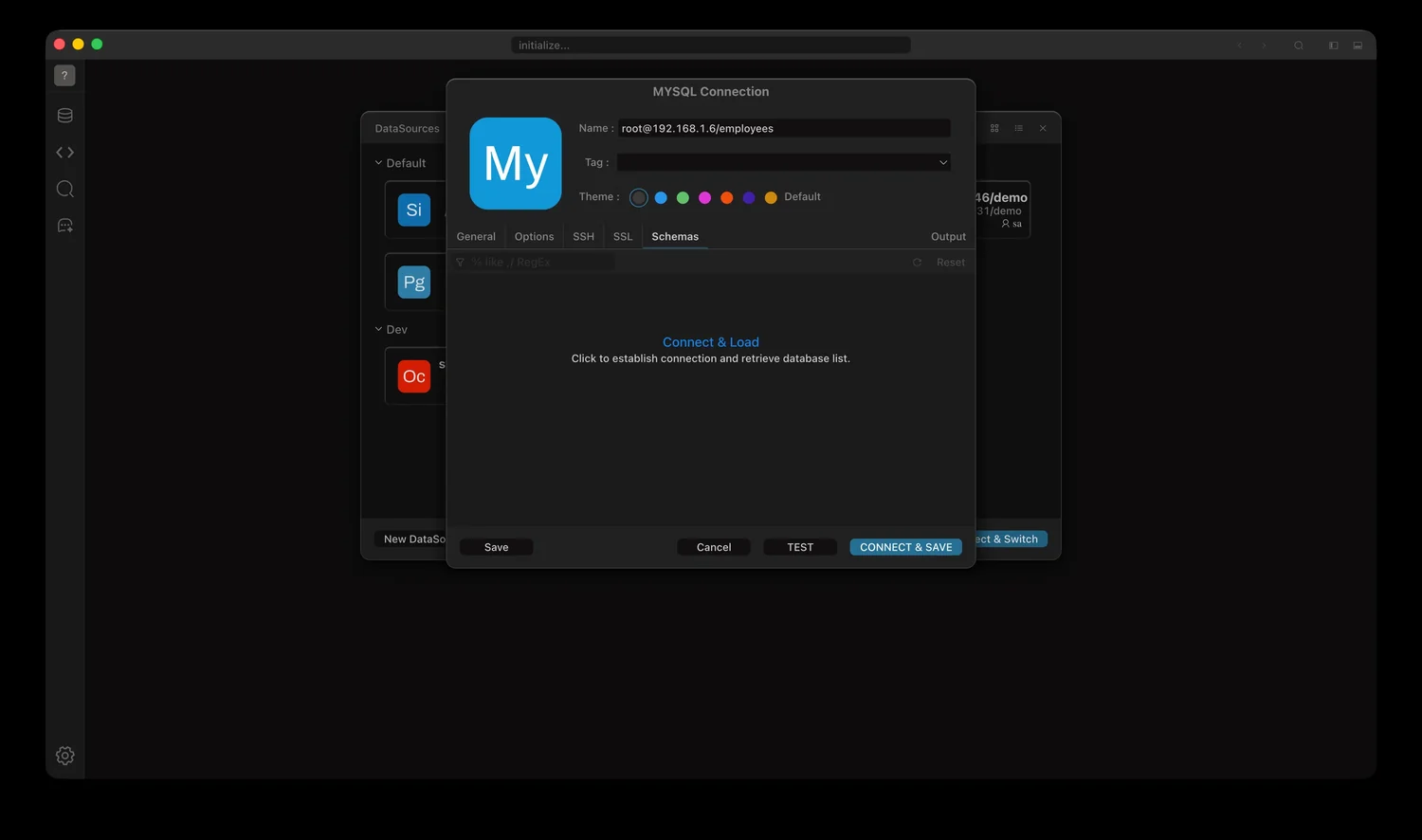
Schemas tab: press Connect & Load to fetch the list
After connecting, the Schemas tab loads databases and schemas so you can choose what the navigation tree shows:
- The first visit shows
Connect & Load; clicking it connects and fetches the list. - Ticking or clearing items only changes the tree, never the database.
- On large servers, select only what you need to keep loading fast.
Import connections
Import DataSources ▸ imports connections from other clients. Three sources are supported:
| Tab | File you need |
|---|---|
| DBeaver | data-sources.json (from the .dbeaver folder in a DBeaver workspace) |
| Navicat | An exported .ncx file |
| IntelliJ&DataGrip | dataSources.xml |
Pick the file and press Import; imported connections appear in the list.
What gets imported
| Source | Imported | Fill in manually |
|---|---|---|
| Navicat | Name, host, user, port, database / SQLite file; SSH host, user, port, key; SSL CA / client cert / client key / ciphers | Password |
| DBeaver | Name, host, URL, database, port | SSH, SSL, password |
| IntelliJ&DataGrip | Name, comment, user, host / port / database parsed from the JDBC URL; SQLite paths with $USER_HOME$ resolved | SSH settings, SSL, password |
Import rules
- Every imported connection gets the
importedtag so it is easy to tell apart. - Only database types supported by SteelSQL are imported; unknown drivers are skipped.
- Existing connections are never overwritten; an id clash creates a new entry.
- An invalid file or an empty connection list fails immediately (
InvalidDataFormat/Not find any connections).
Export from each tool
- DBeaver:
File > Export→ chooseProject→ finish, then look fordata-sources.jsonin the.dbeaverfolder. - Navicat:
File > Export Connectionsand export a.ncxfile. - IntelliJ / DataGrip: DataGrip’s
dataSources.xmlmust sit in the same folder asdataGrap.local.xml, otherwise the user and database details are missing and the import fails.
Test and save
- TEST connects once with the current settings; the result shows version, isolation level, database, and encoding.
- CONNECT & SAVE stores the settings and opens the connection immediately.
Saved connections can be edited again from the DataSources panel, or duplicated with a different port to reach another environment.