
Multi-cell Editing
Work on several cells at once: fill a selected range with one value, copy and paste, or clear a whole block.
▶ Tutorial: multi-cell
Multi-select → type → paste → commit
Select a range
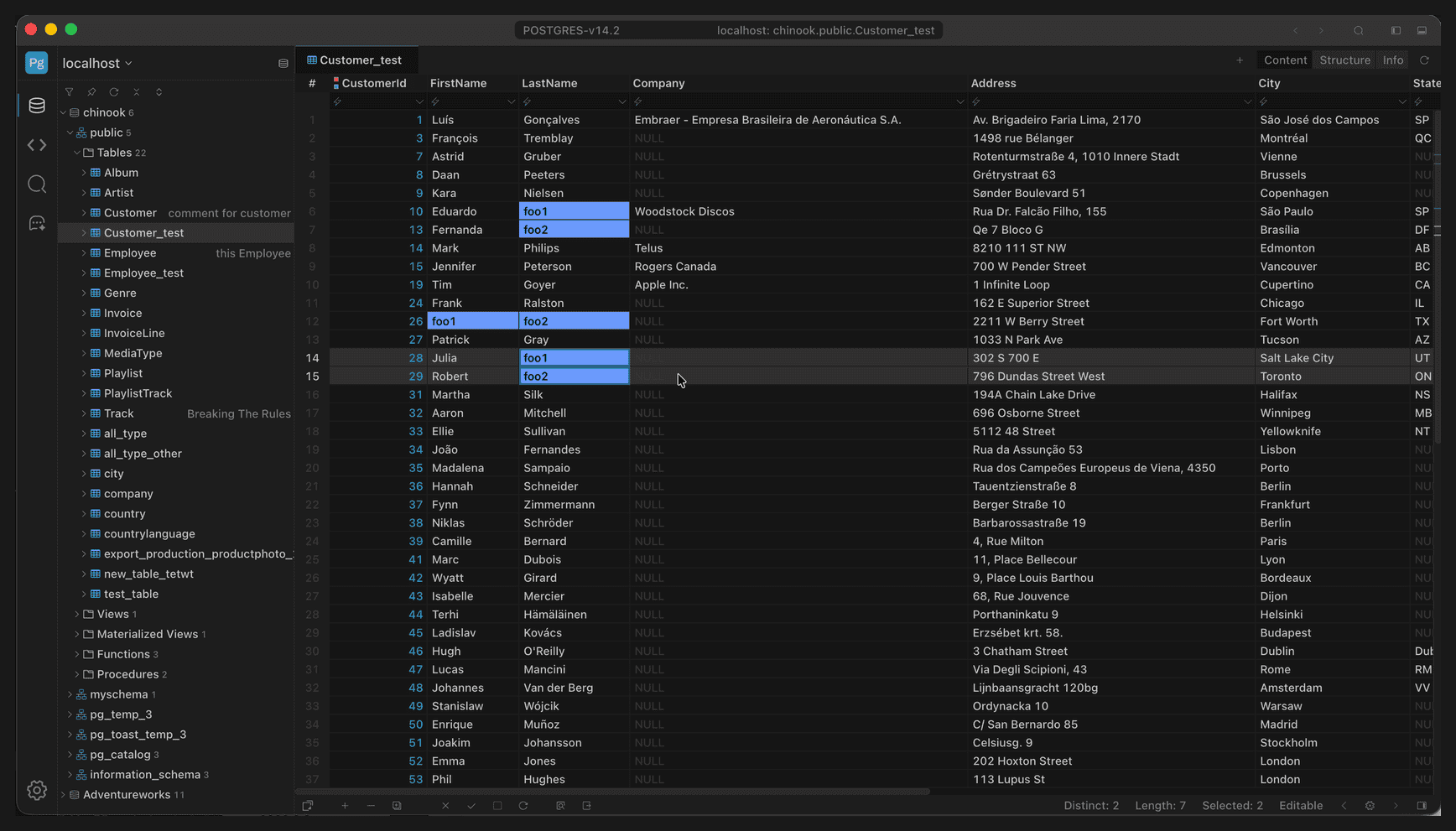
Values filled into a multi-selection in bulk
The status bar shows the selection count, the number of distinct values, and the content length in real time, for example Selected: 7, Distinct: 7, and Length: 7, so you can check the range before committing.
Type to fill
With multiple cells selected, type the new value directly on the keyboard to overwrite the whole selection; there is no need to edit cell by cell or double-click into edit mode first.
- Drag out a rectangular selection, or hold
Cmd/Ctrland click non-adjacent cells; - Type the new value;
- Press
Enterto confirm; every cell in the selection becomes the same value; - Click Apply to commit, or Revert to discard.
Copy cells
Select cells and press Cmd+C (win: Ctrl+C) to copy:
- With a single cell selected, the copy is plain text.
- With multiple rows and columns selected, the content is written as table text separated by tabs, so it splits into columns automatically when pasted into Excel/Sheets.
- If a single cell exceeds the size limit (measured in MB by default), it is not copied and
Cell … is too longis shown.
Paste into cells
Press Cmd+V (win: Ctrl+V) to paste:
| Selected range | Paste behavior |
|---|---|
| One cell | The whole text is written into that cell as-is (not split) |
| Multiple cells | Split by tabs/newlines and filled into each cell in order |
| Multiple cells + clipboard holds 1 value | That value fills the entire selection |
| Multiple cells + clipboard holds fewer values than cells | Clipboard values are reused cyclically to keep filling |
The last row is the key to bulk filling: copy a few values, select a large range, and paste, and the selection repeats those values in order. Multi-row, multi-column content copied from Excel also pastes directly, with rows and columns mapping across.
Set NULL for a range
Select multiple cells and press Backspace to set the whole selection to NULL; to use an empty string instead, use Set Empty from the right-click menu.
Before you apply
Three things are worth checking before committing:
- The
Selectedcount in the status bar matches the range you meant to change, so you do not touch adjacent rows by accident; - The table has a primary key, so the
WHEREin OUTPUT can target a single row precisely; - Changes exist only in the current result set; commit before switching tables or refreshing, otherwise uncommitted edits are lost.