
Overview
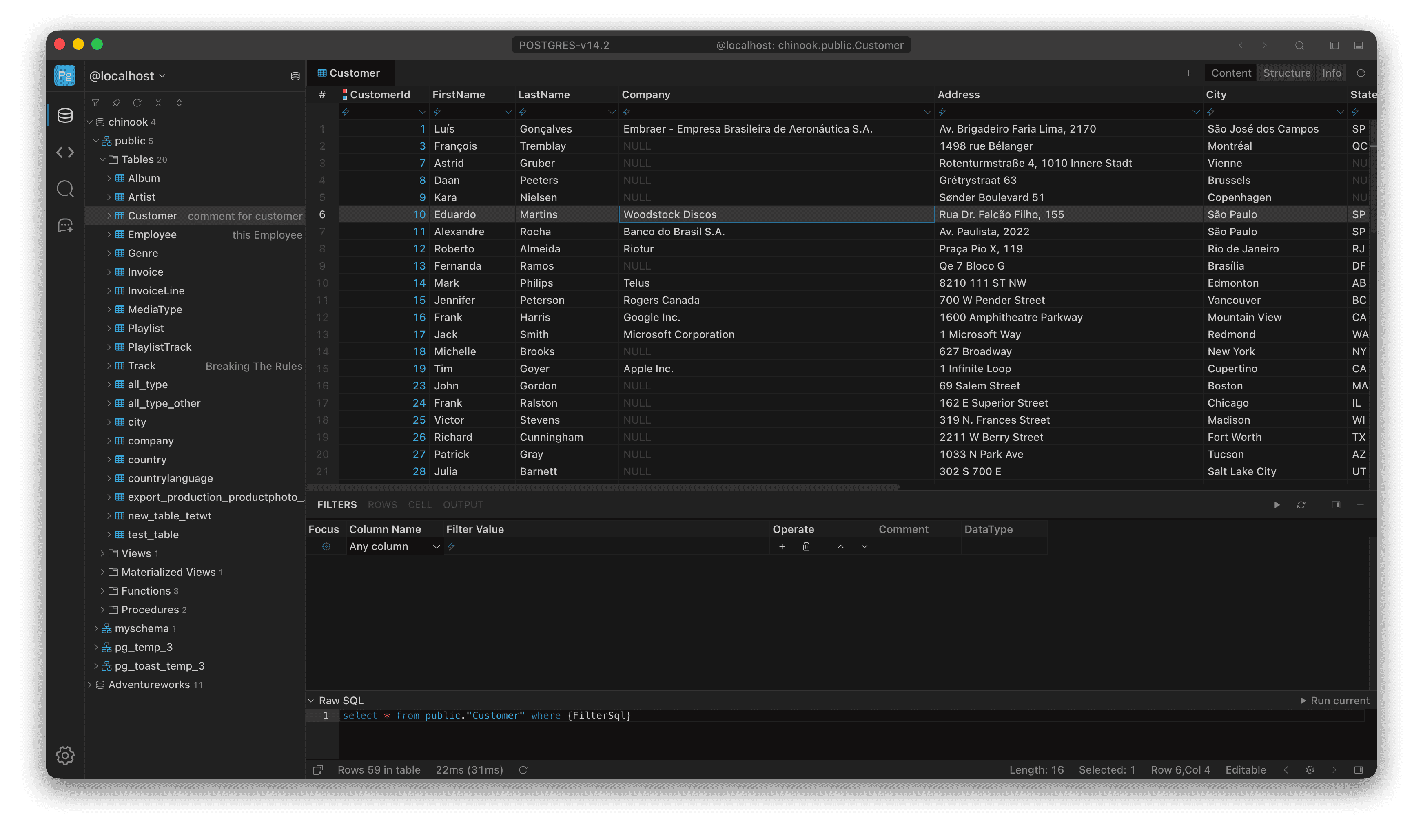
Main window: object tree on the left, DataGrid in the middle (with Content / Structure / Info tabs above), FILTERS panel below
About SteelSQL
SteelSQL is a cross-platform SQL database client for developers and DBAs who work with databases every day. It puts connection management, SQL editing, result editing, and import/export in one window, and focuses on three things:
- Reach the database — a built-in SSH tunnel gets you into private networks without setting up a jump host.
- See the structure — the object tree loads on demand, so tables, views, columns, and constraints stay visible even on large schemas.
- Change data quickly — the result set is the editor: filter, search, bulk edit, copy and paste all happen in the grid.
It does not replace command-line tools. Instead, it takes the parameter-heavy operations from psql and mysql and makes them repeatable in a GUI, then adds the browsing and editing those tools never had.
Platforms
| Platform | Requirement |
|---|---|
| Windows | Windows 10 or later, x64 |
| macOS | Apple Silicon (M1 or later) |
| Linux | x64 |
All three platforms share the same interface and feature set.
Core concepts
- Connections — one connection maps to one database instance (host, port, user, plus SSH and SSL when needed). Connections are stored locally and can be grouped, colored, and imported.
- Workspaces — a workspace is the working environment for the current DataSource (connections, tabs, settings, sessions). It uses the same name as the DataSource and has no separate management screen. Its data lives in its own workspace directory.
- Queries — a query is a SQL file: create, save, favorite, and run it; results appear below the editor and can be filtered and edited further. Common actions have shortcuts, such as
Cmd+Enter(Ctrl+Enteron Windows).
To jump straight to a table or a command, use Open Everything (Cmd+Shift+P, Ctrl+Shift+P on Windows).
Switch workspace
A workspace is the working environment for the current DataSource. It shares the DataSource name and has no dedicated management page. There are two ways to switch:
- Click the connection name at the top of Navigation and pick another DataSource;
- Use the Switch Workspace menu.
After switching, the window loads that DataSource’s connections, tabs, and settings. Close Workspace in the same menu closes the current workspace.
Each workspace has its own directory on this machine, holding connections, sessions, and query files:
- the workspace root can be changed in Settings;
- a single connection’s directory can be changed under Options in the connection editor.
Workspace data stays local and is never written to the database server.
Supported databases
| Database | Dialect | Minimum version | Tested version |
|---|---|---|---|
| MySQL | mysql | 5.0 | 9.7.2 |
| MariaDB | mysql | 5.0 | 12.0 |
| PostgreSQL | postgres | 9.3 | 17.6 |
| Oracle | oracle | 12.1 | 23ai |
| SQL Server | sqlserver | 2008 | 2025 |
| SQLite | sqlite | 3.39 | 3.50 |
| TiDB | mysql | 7.5 | 7.5 |
| CockroachDB | postgres | 13.0 | 13.0 |
| Redshift | postgres | 1.0.2 | 1.0.2 |
| Greenplum | postgres | 6.25 | 6.25 |
| Cassandra | cassandra | 5.0.7 | 5.0.7 |
| ClickHouse | clickhouse | 20.0 | 26.3 |
Twelve databases fall into seven dialects; databases that share a dialect also share SQL generation, metadata queries, and completion:
- mysql dialect: MySQL, MariaDB, TiDB
- postgres dialect: PostgreSQL, CockroachDB, Redshift, Greenplum
- Standalone dialects: Oracle, SQL Server, SQLite, Cassandra, ClickHouse
“Minimum version” is the oldest release you can connect to; “tested version” is the highest release actually verified. There is no upper limit: newer servers usually connect fine, but newly added system tables or functions may not appear in completion.
Per-database notes
- MySQL family: set charset and time zone explicitly to avoid mojibake and time offsets.
- PostgreSQL family: one connection can switch between multiple databases, each with its own schemas. CockroachDB, Redshift, and Greenplum follow the same hierarchy.
- Oracle: Service Name and SID are different formats; make sure you use the right one.
- SQL Server: named and default instances use different connection details, so check the instance name when creating a connection.
- SQLite: no host or port; pick the database file, or provide a Unix domain socket path.
- Cassandra: choose a keyspace after connecting; paging and sorting follow Cassandra’s own limits.
- ClickHouse: suited to analytical queries; avoid row-by-row updates.
Installation
Download the installer for your platform from the download page.
macOS
- Open the downloaded package.
- Drag SteelSQL into Applications.
- Launch it from Applications.
If macOS says the developer cannot be verified on first launch, allow the app under System Settings → Privacy & Security. If it says the package is damaged, the machine usually does not meet the requirements (Apple Silicon is required).
Windows
- Run the installer.
- Follow the wizard; the install directory can be changed.
- Launch from the Start menu.
Linux
- Download the package for your architecture.
- Extract it to a target directory, or install it with your package manager.
- Launch from the application menu or a terminal.
Verify the installation
After launching, check that the main window opens, a database icon appears in the left navigation bar, the DataSources panel shows on first launch, and Check for Updates exists in the Help menu.
Installation troubleshooting
| Symptom | What to do |
|---|---|
| macOS cannot verify the developer | System Settings → Privacy & Security → Open Anyway |
| macOS says the package is damaged | Confirm an Apple Silicon machine and a supported OS version |
| Windows blocks the installer | Allow the installer to run, or ask an administrator to lift the policy |
| Linux reports missing libraries | Install the dependencies listed in the error |
| Blank window after launch | Quit completely and relaunch; if it persists, delete the config directory and try again |